
Add Notes to Your Auto Connect & Follow Requests in the Skrapp Extension
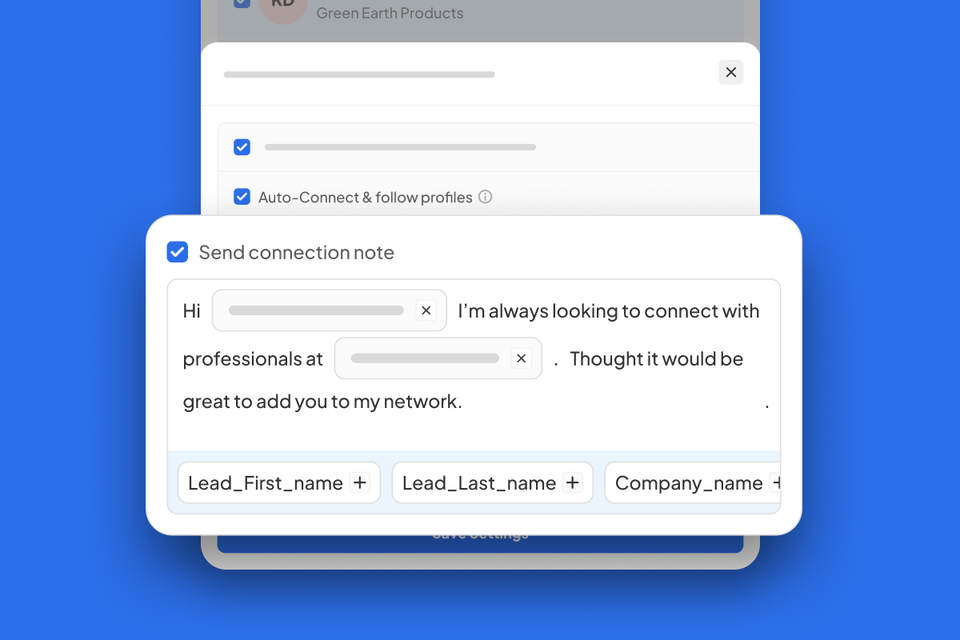
You can now automate sending notes together with your connection requests using the Auto Connect & Follow feature in the Skrapp.io Chrome extension.
Earlier, we announced the launch of the Skrapp extension’s new Auto Connect & Follow feature, which brings together all key prospecting steps: email lookup, company data enrichment, and connection engagement.
To add even more personalization at scale, we’re introducing Notes, a new option that lets you send automated messages when you auto-connect with your target profiles.
Why It Matters
Connection requests sent without a personalized message often look generic and have a lower chance of being accepted. Adding a note helps clarify the reason for reaching out and establishes an initial touchpoint with your leads.
Skrapp.io now allows you to send these outreach messages in bulk while connecting with potential customers, giving you the ability to personalize each note using dynamic fields.
As a result, your LinkedIn prospecting becomes more effective, improves connection acceptance rates, and increases the likelihood of receiving responses when engaging multiple prospects at once.
Where to Find It
The new Notes feature is available in the Skrapp.io Chrome extension. When you access the Skrapp.io extension on LinkedIn, LinkedIn Sales Navigator, or LinkedIn Recruiter, you’ll see the Enrichment Settings section in the bottom-right corner.
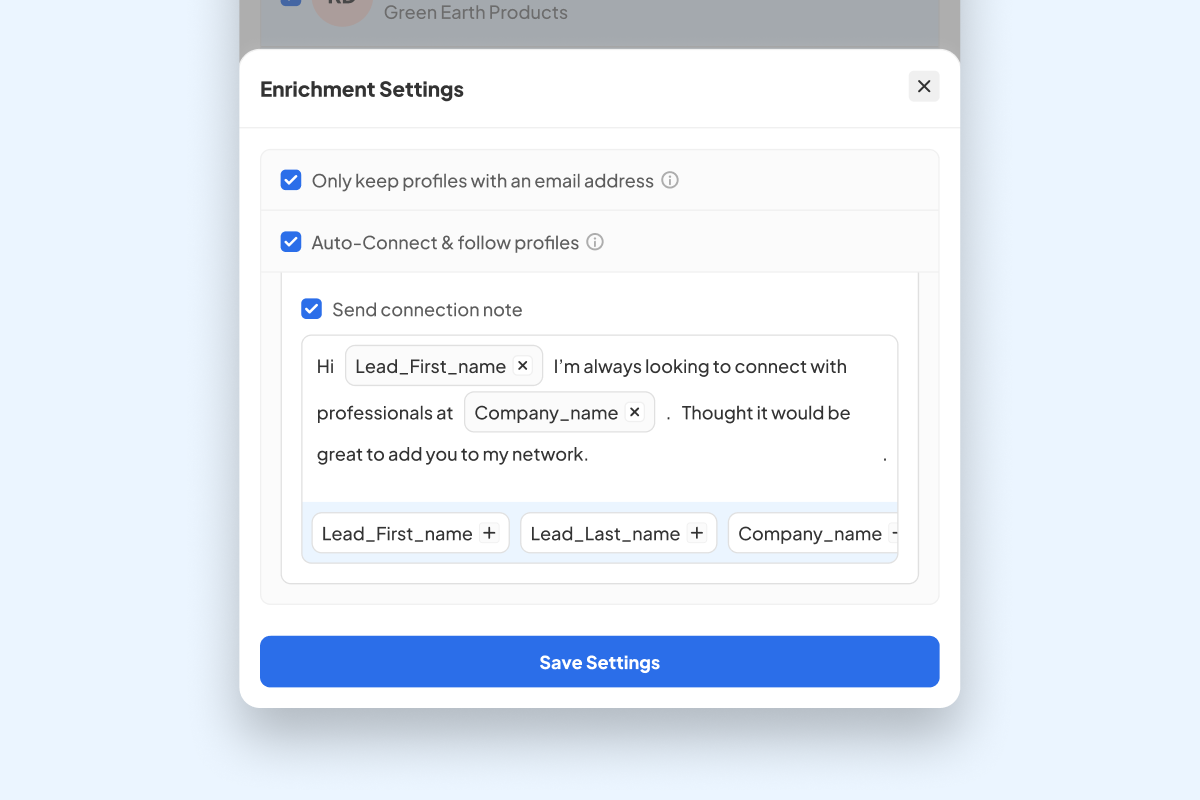
Click the Configure Settings icon and select the Auto-Connect and follow profiles checkbox. Just below it, you’ll find a new option:
☑️ Send connection note
When selected, Skrapp.io activates the note field, allowing you to:
- Create an outreach message
- Use dynamic fields such as first name or company name to add a personal touch to your automated outreach
After you click Save Settings, Skrapp.io will automatically send connection notes to the selected prospects while you connect with them and enrich their contact data.
How To Use the Feature
Use the Notes feature when your goal extends beyond data enrichment (such as collecting contact names, company details, email addresses, roles, or locations) and also involves connecting with selected profiles on LinkedIn.
When you enable both Auto-Connect and follow profiles and Send connection note, Skrapp.io will automatically send connection requests along with personalized outreach messages to all contacts you’ve selected for data enrichment.
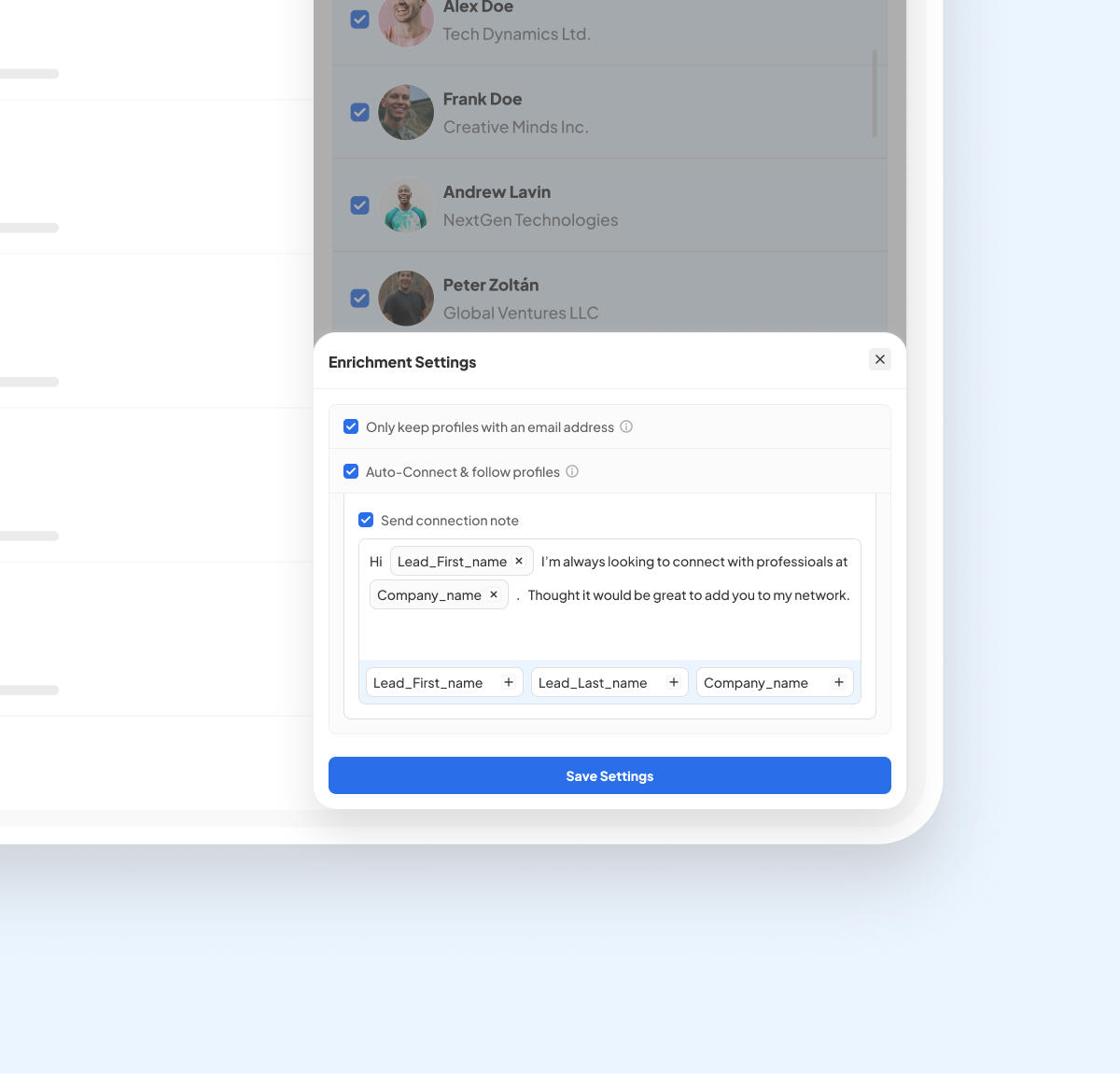
Keep in mind that notes are sent only when it’s possible to send connection requests to the selected profiles.
Supported Plans
The Notes feature, along with Auto Connect and Follow, is available to Skrapp users on the Professional and Enterprise plans.
If you’re on the Free plan, this feature won’t be available until you upgrade to one of the plans listed above.
Once you activate a Professional or Enterprise plan, the Auto Connect and Follow option will become available, along with the ability to add a connection note.
Start Using It Today
Get started with personalized outreach notes on your LinkedIn auto-connection requests by downloading or updating the Skrapp.io Chrome extension to the latest version.