
9 Best LinkedIn Chrome Extensions for Sales and Marketing (2026)

Some of the best LinkedIn Chrome extensions in 2026 include Skrapp for lead finding, Taplio for scheduling and post analytics, and Crystal for LinkedIn profile personality insights. These are just a few of the useful tools I’ve gathered in this article.
This guide maps nine extensions to the exact job they do best for sales and marketing teams. I chose each one to solve a different problem that marketers and salespeople deal with daily.
You’ll discover the best tool for extracting verified emails from LinkedIn profiles, one that helps you understand how a prospect prefers to be approached, and another that personalizes your outreach and content instead of making it feel templated.
If you’re making prospecting lists, sending outreach messages, or growing a content pipeline, the extensions below can automate time-consuming sales and marketing tasks.
Install the Skrapp LinkedIn Extension to generate leads and find verified contact details
Add to ChromeBest LinkedIn Chrome Extensions at a Glance
| Extension | Best For | Starting Price | Chrome Web Store Rating |
|---|---|---|---|
| Skrapp.io | Extracting verified emails from LinkedIn profiles | Free / $39/mo | 4.8 ★ |
| Kaspr | Finding phone numbers and enriching contact data | Free / €59/mo | 4.7 ★ |
| Crystal | Personality insights for outreach personalization | Free (5 profiles) / $49/mo | 4.1 ★ |
| Taplio | LinkedIn content creation and post scheduling | $39/mo (AI from $69/mo) | - |
| TextBlaze | Pre-written DM templates with keyboard shortcuts | Free / $2.99/mo | 4.4 ★ |
| Kleo | Personal brand building through content insights | $99/mo | 4.5 ★ |
| AuthoredUp | Post formatting, preview, and hook library | $19.95/mo | 4.7 ★ |
| Grammarly | Grammar, tone, and clarity across all LinkedIn text | Free / $12/mo | 4.5 ★ |
| LinkHelp | AI-assisted messaging, replies, and outreach automation | Free / $79/mo | 4.2 ★ |
1. Reveal and Verify Emails with Skrapp
Skrapp.io turns LinkedIn into a contact database. The Chrome extension works on any profile or search results page and pulls verified email addresses with a single click. It works individually and across an entire filtered search.
Skrapp's email verification feature verifies every email before you add it to your prospecting list. And the data that enters your CRM or an SCV list is clean and deliverable. You can use it to launch outreach campaigns and make sure the message reaches its intended recipient.
Best For: Sales teams building verified prospect lists from LinkedIn; marketers running cold email campaigns at scale.
Most Useful Features:
- LinkedIn single-profile email finder opens on any LinkedIn profile with one click and returns a verified email
- Bulk LinkedIn scraper pulls emails from an entire search results page at once; filter by job title, location, or company before running it
- Email verification checks deliverability for every contact before export, keeping bounce rates low
- Company domain search helps you find all available contacts at a specific domain. This is useful when you don’t know the exact person to reach, but you do know the company's domain.
- CRM and CSV export sends verified contact lists directly to Salesforce, HubSpot, or a spreadsheet in one step
How to Use Skrapp to Search for Prospects
Search LinkedIn or LinkedIn Sales Navigator. Use filters that match your ICP, like job title, industry, company size, and location. When the results load, click the Skrapp icon to bulk-extract emails from the full page. To get a single verified email for individual profiles, go to the profile and click the extension icon.
Before exporting to your outreach tool, run the list through Skrapp's email verifier. Remove any contacts flagged as invalid or risky. Once the list is clean, export to CSV or push directly to your CRM. Repeat the process for the next search page, and build your list until you hit the target count.
Find verified email addresses from LinkedIn profiles and search results in one click
Install Email Extractor2. Find Phone Numbers with Kaspr
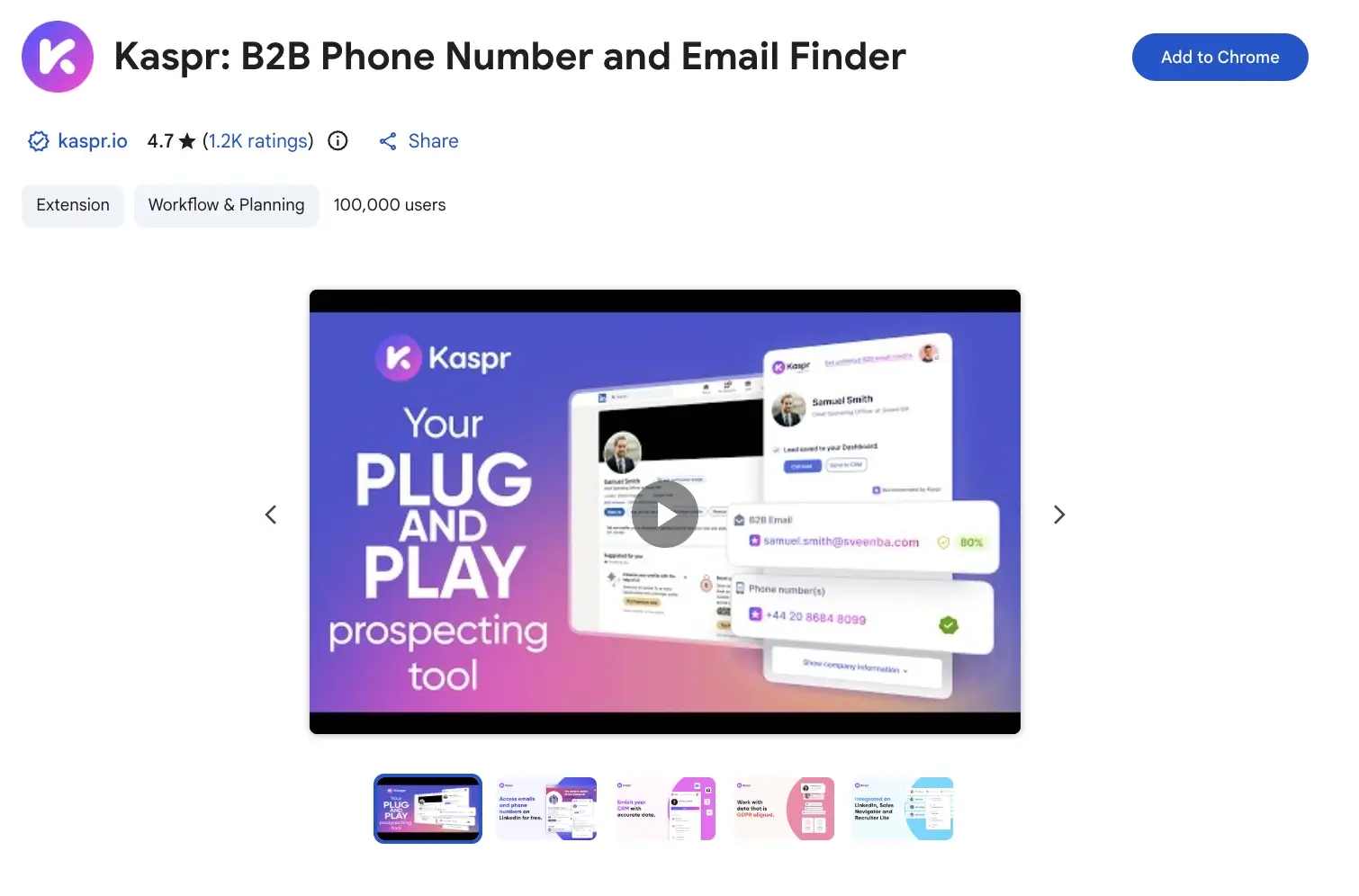
Kaspr's LinkedIn extension adds contact data directly to LinkedIn profiles. You’ll see email addresses, direct dials, and mobile numbers all in one sidebar. The extension works with profiles, groups, events, and Sales Navigator searches and sends the data to your CRM.
The database focuses on Europe, with over 120 million contacts in the UK, Germany, France, and nearby markets. Teams working in this region will benefit more than those targeting the US market.
Best For: Sales teams running multichannel outreach that combines LinkedIn DMs, email, and cold calling; teams with a significant part of their pipeline in European markets.
Most Useful Features:
- Phone number enrichment shows direct dials and mobile numbers. You can find this info next to the email in the LinkedIn profile sidebar.
- One-click CRM export sends enhanced contact data to HubSpot, Salesforce, Pipedrive, and more. No manual copying is needed.
- Sales Navigator integration helps enrich filtered prospect lists directly within search results.
- GDPR-compliant data sourcing matters for European outreach teams working with data privacy rules.
- Real-time data retrieval retrieves contact info in real time instead of from a cached database. This reduces the risk of using outdated phone numbers.
How to Use Kaspr to Enrich Prospect Data
Visit any LinkedIn profile or run a search in Sales Navigator. The Kaspr sidebar opens automatically and displays the available phone number for the person on screen. Click "Reveal" to use a credit and unlock the full contact details.
For bulk lists, run a filtered Sales Navigator search, then use Kaspr's bulk enrichment to pull contact data for the full results page. Export to your CRM or to a CSV file once the enrichment is complete.
3. See Personality Insights with Crystal
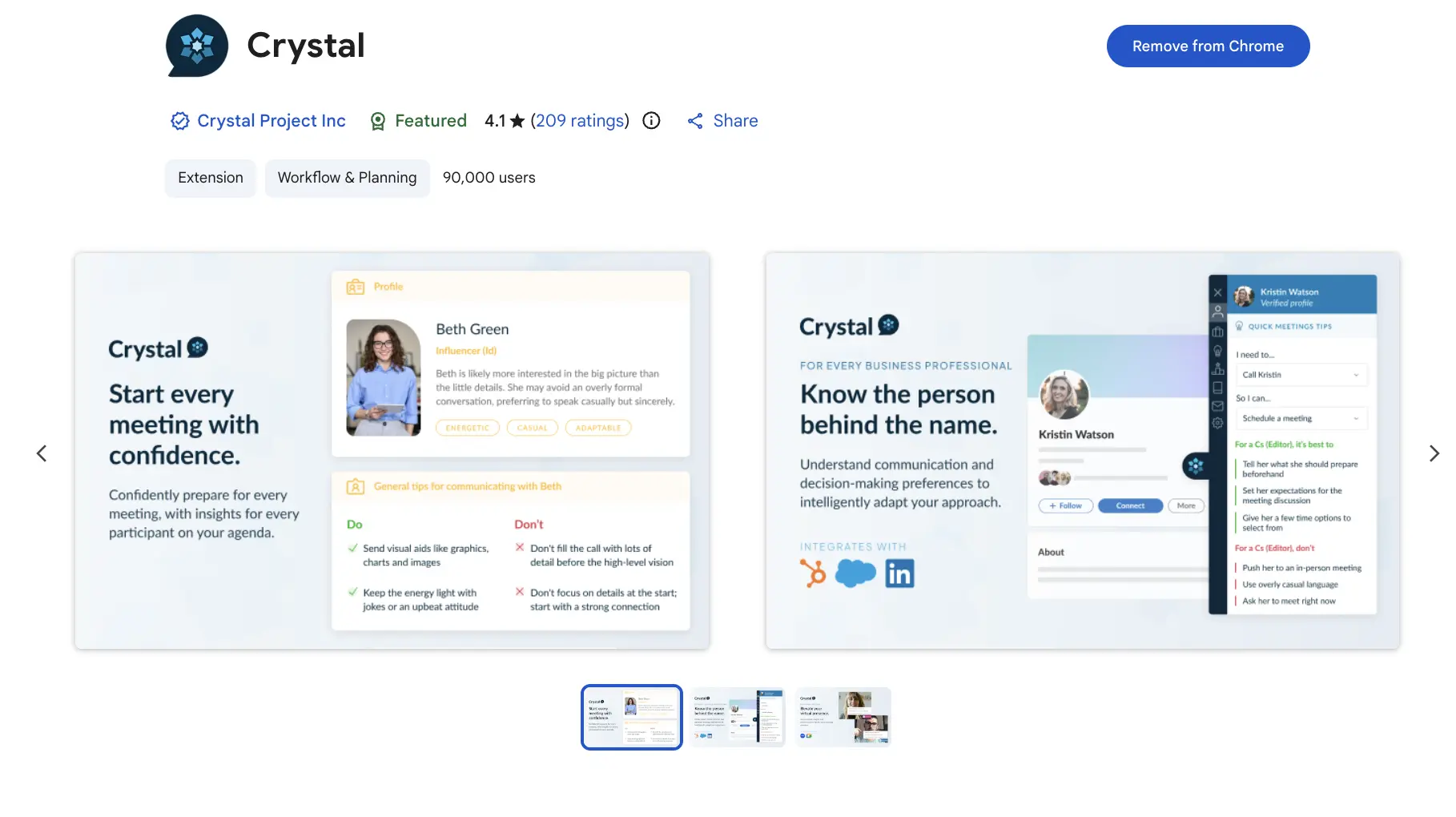
Crystal reviews a prospect's LinkedIn profile and provides you with a DISC personality assessment. You receive this assessment before sending your first direct message (DM) to the prospect. The extension shows if someone likes direct, data-driven talk or warmer, relationship-focused language.
Crystal also offers ideas for crafting your opening line, pitch, and follow-up based on the target person’s profile. It maps behavioral signals from the profile into a recognized personality framework.
Best For: Account executives and salespeople who send high-value, one-to-one outreach to prospects where tone and approach directly affect whether they reply.
Most Useful Features:
- DISC personality overlay on LinkedIn profiles — surfaces personality type, communication preferences, and decision-making style directly on the profile page
- Personalized messaging tips give specific suggestions for how to open, pitch, and follow up based on the prospect's DISC type
- Meeting playbooks generate pre-call prep notes tailored to the prospect's personality, covering how to build rapport and present your value proposition
- Gmail and LinkedIn writing assistant highlights phrases in your draft that don't match the prospect's preferred communication style and suggests alternatives
- CRM integrations sync personality data with Salesforce and HubSpot for use across the sales team, not just the individual rep
How to Use Crystal to Craft Personalized Outreach
Visit the LinkedIn profile of a prospect you're about to contact. Crystal adds a panel on the right side of the profile that shows the personality type, communication preferences, and specific tips.
Read the "How to communicate with [Name]" section before writing anything. If the profile shows a high-D (dominant) type, keep your message short and lead with results. If it shows a high-I (influential) type, open with something warm and conversational before the ask.
Turn unanswered LinkedIn outreach into email conversations with verified contact data
Find Contact Details4. Optimize LinkedIn Posts with Taplio
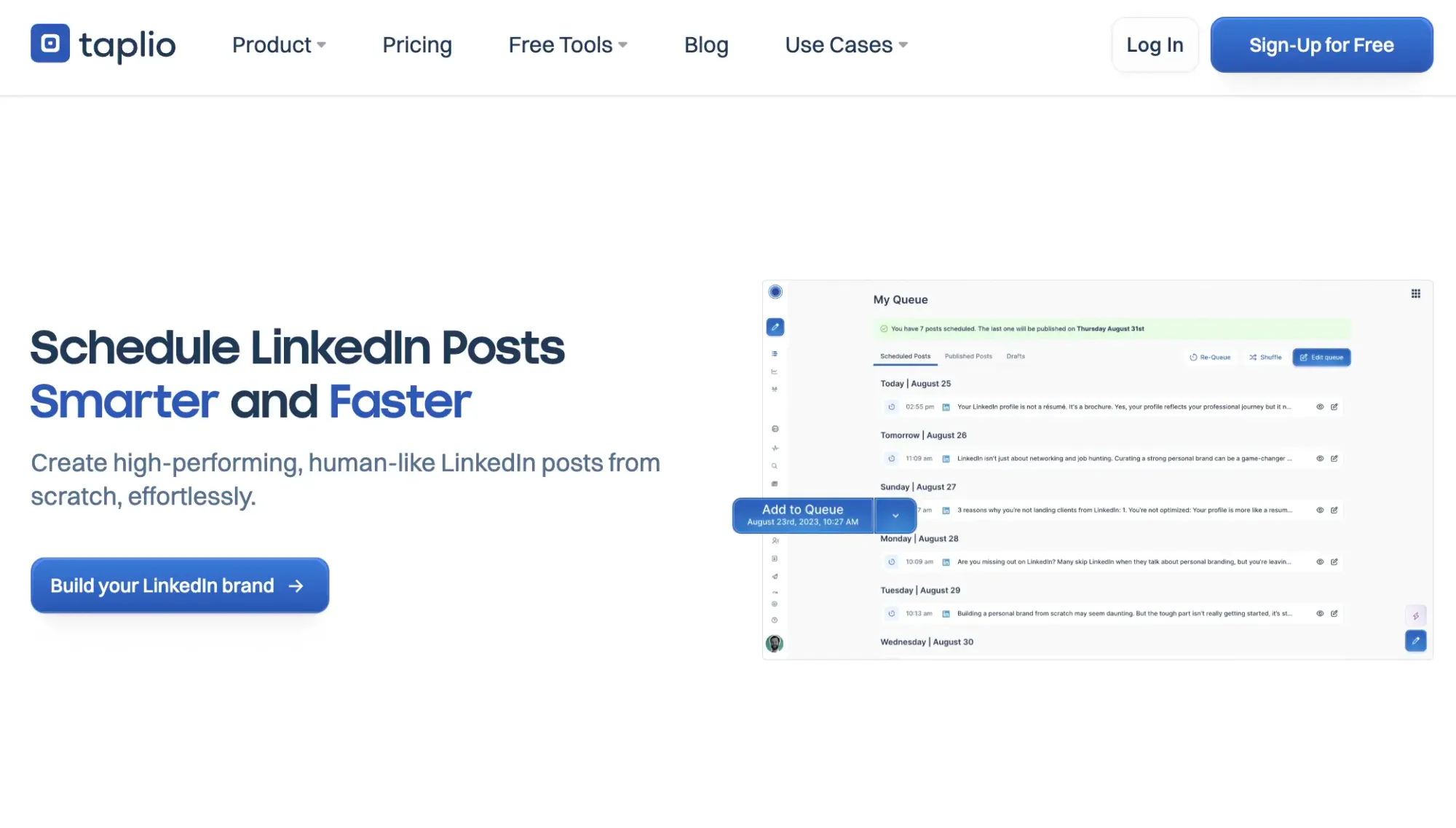
Taplio is a LinkedIn platform for content optimization and growth. It offers post scheduling, AI writing help, engagement analytics, and a library of viral post ideas. The platform has a database with over 3 million LinkedIn contacts.
You can filter these contacts by engagement to find people who are already interacting with posts in your niche. From there, connect with them directly on LinkedIn or using tools like Skrapp.io to continue the conversation via email outreach.
Best For: Marketers and founders aiming to build a LinkedIn audience and turn followers into customers. Also great for content-driven sales teams, monitoring post performance, and boosting engagement.
Most Useful Features:
- AI post generator writes LinkedIn posts based on your topic and target audience
- Viral post library filters over 5 million top LinkedIn posts by industry and content type. This tool helps you find effective formats in your niche before you create content.
- Post scheduling and calendar show posts in daily, weekly, and monthly views. It also supports scheduled comments and auto-replies.
- LinkedIn analytics dashboard tracks impressions, engagement rates, and follower growth over time. It breaks down analytics by post type, giving a clear view of performance.
- Contact database provides access to over 3 million enriched LinkedIn contacts. You can filter these by activity and engagement, making prospecting and content efforts easier.
How to Use Taplio to Grow a LinkedIn Audience
Use the viral post library to research content formats performing well in your industry. Then filter by engagement metrics and content type to identify patterns. Use the AI post generator to draft posts based on your chosen angle, then edit to match your voice before scheduling.
Build a content calendar with at least 3 posts per week. Use the scheduling feature to publish at peak times for your audience. Check the analytics dashboard after 4–6 weeks of regular posting. This will help you see which post types get the most impressions and engagement. Double down on those formats.
5. Create Text Snippets with TextBlaze
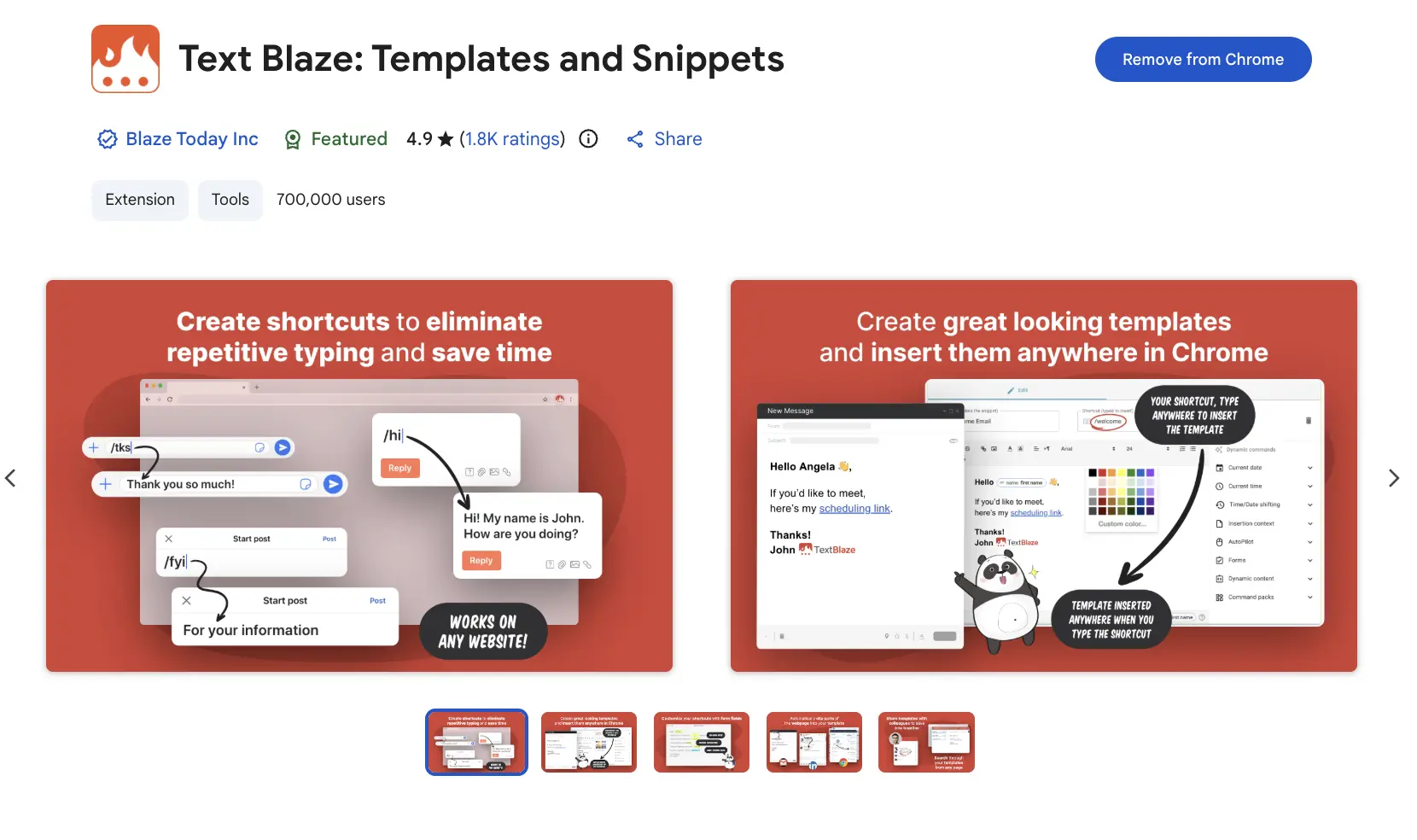
TextBlaze is a Chrome extension for LinkedIn that works as a text snippet tool. You write a message template, assign it a keyboard shortcut, and type that shortcut anywhere in Chrome, including LinkedIn's message composer, to insert the full text instantly. The inserted text isn't a copy-paste. It dynamically expands, filling in variables such as the prospect's first name, company, or any custom field you define.
Sales teams that use LinkedIn as a primary prospecting channel can save their go-to intros, follow-ups, replies to common objections, and other frequently used messages as templates. Then quickly drop them into conversations without having to type everything from scratch each time.
Best For: Sales teams and recruiters working with high-volume LinkedIn outreach who need consistent messaging with personalized fields, and no copying and pasting the same text manually.
Most Useful Features:
- Keyboard shortcuts for text expansion let you type a short command in any LinkedIn message box. This will expand it into a full pre-written template.
- Placeholders for names, companies, job titles, and custom fields are automatically filled in when the snippet expands.
- Snippet folders help you organize templates by campaign, stage, or persona. This way, the right message is always just one shortcut away.
- Works in all Chrome tabs, like LinkedIn, Gmail, HubSpot, and Salesforce. You don’t need to switch contexts to use it with any browser-based tool.
- Team sharing lets the whole team use the same tested messaging.
How to Use TextBlaze to Craft Personalized DMs
Create a new snippet for your most-used LinkedIn opening message. Add a variable for the prospect's first name using the {first_name} syntax. Assign a shortcut like /intro and repeat this for your follow-up message (/follow1), second follow-up (/follow2), and any objection responses you handle frequently.
When you are ready to send a DM on LinkedIn, type the shortcut in the message box to expand the full template. Fill in or adjust any variable fields, review the message for fit, and send. Build your library over time by saving any message that generates a positive response as a new snippet.
6. Building a Personal Brand with Kleo
Kleo is an AI content assistant that learns your writing style and generates LinkedIn posts that sound like you wrote them. You feed it your existing posts, call transcripts, blog content, or podcast notes, and Kleo uses that material to train a writing model on your voice and expertise. Posts it generates from that base are harder to distinguish from your own writing than content from a generic AI prompt.
Best For: Founders and executives who post frequently on LinkedIn and want AI assistance that matches their writing style rather than a generic AI tone.
Most Useful Features:
- Personalized knowledge base uses your existing posts, transcripts, and articles to train the AI on your own voice and expertise
- AI post generation drafts LinkedIn posts from prompts, informed by your knowledge base and writing style history
- Template library provides a curated collection of high-performing post structures and hooks, filterable by format and engagement type
- Post scheduler publishes directly to LinkedIn with scheduling controls built into the platform
- Trending topic discovery shows topics gaining traction in your industry, so you can post on what's relevant right now
How to Use Kleo to Build a Personal Brand on LinkedIn
Start by uploading your past posts, articles, or call transcripts so that Kleo’s knowledge base learns your voice before you generate new content. The more material you provide, the less editing the output will need in the future.
From there, use the post generator with a topic or angle, adjust those parts that don't sound like you, and schedule directly from the platform. The first few drafts will need more work, as the model improves with more of your writing as references.
Build your personal brand on LinkedIn and scale conversations with direct email outreach
Find Verified Emails7. Format and Preview with AuthoredUp
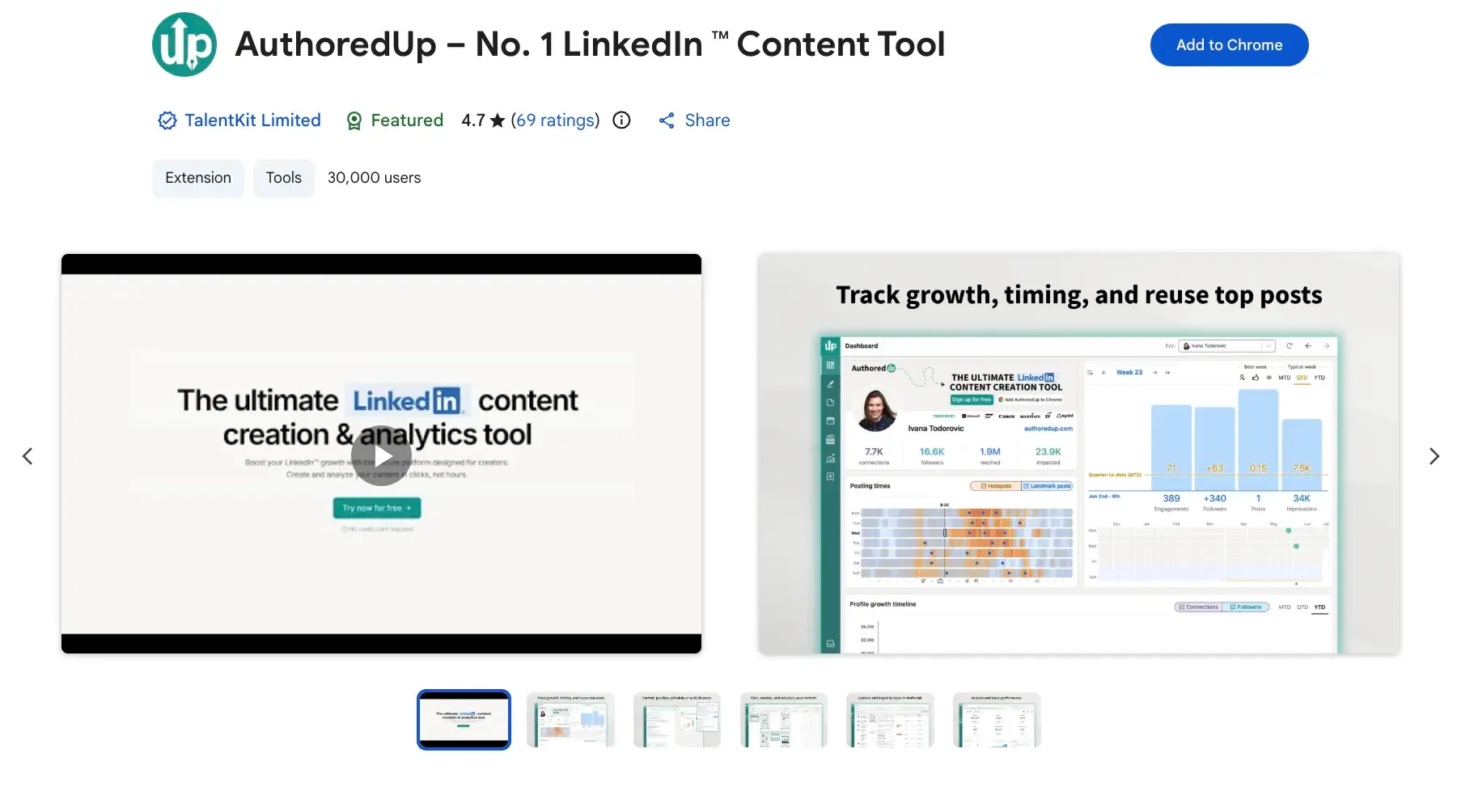
AuthoredUp adds a rich text editor and preview option directly into LinkedIn's post composer. LinkedIn's native editor doesn't support bold, italic, or bullet points, so AuthoredUp helps fix that limitation. You write your post in AuthoredUp's interface, apply formatting using real controls, preview exactly how it will render on desktop and mobile, and publish once it looks right.
Best For: LinkedIn creators, marketers, and executives who write their own posts and want to have formatting control with a pre-publish preview.
Most Useful Features:
- Rich text formatting inside LinkedIn's composer allows the use of text in bold, italic, bullet points, and numbered lists that render correctly in the feed
- Hook library includes tested opening lines organized by format to help you start writing faster when you don’t know how to begin
- Cross-device preview shows exactly how your post looks on desktop, tablet, and mobile before publishing
- Post analytics tracks impressions, engagement, and follower growth, so you can see which types of content perform best
- Draft saving saves posts in progress so you can write across multiple sessions without losing work
How to Use AuthoredUp to Format and Optimize Posts
When you write a new post, AuthoredUp's interface overlays the native LinkedIn composer. It allows you to apply bold to key phrases, use line breaks, and check the readability score. Switch to the preview tab and check how the post renders on desktop and mobile.
Once the post is formatted and previewed, publish directly from AuthoredUp. After 48 hours, review the post analytics to track reach and engagement. Over time, use the analytics dashboard to identify which post formats perform best for your audience.
8. Improve Writing Quality with Grammarly
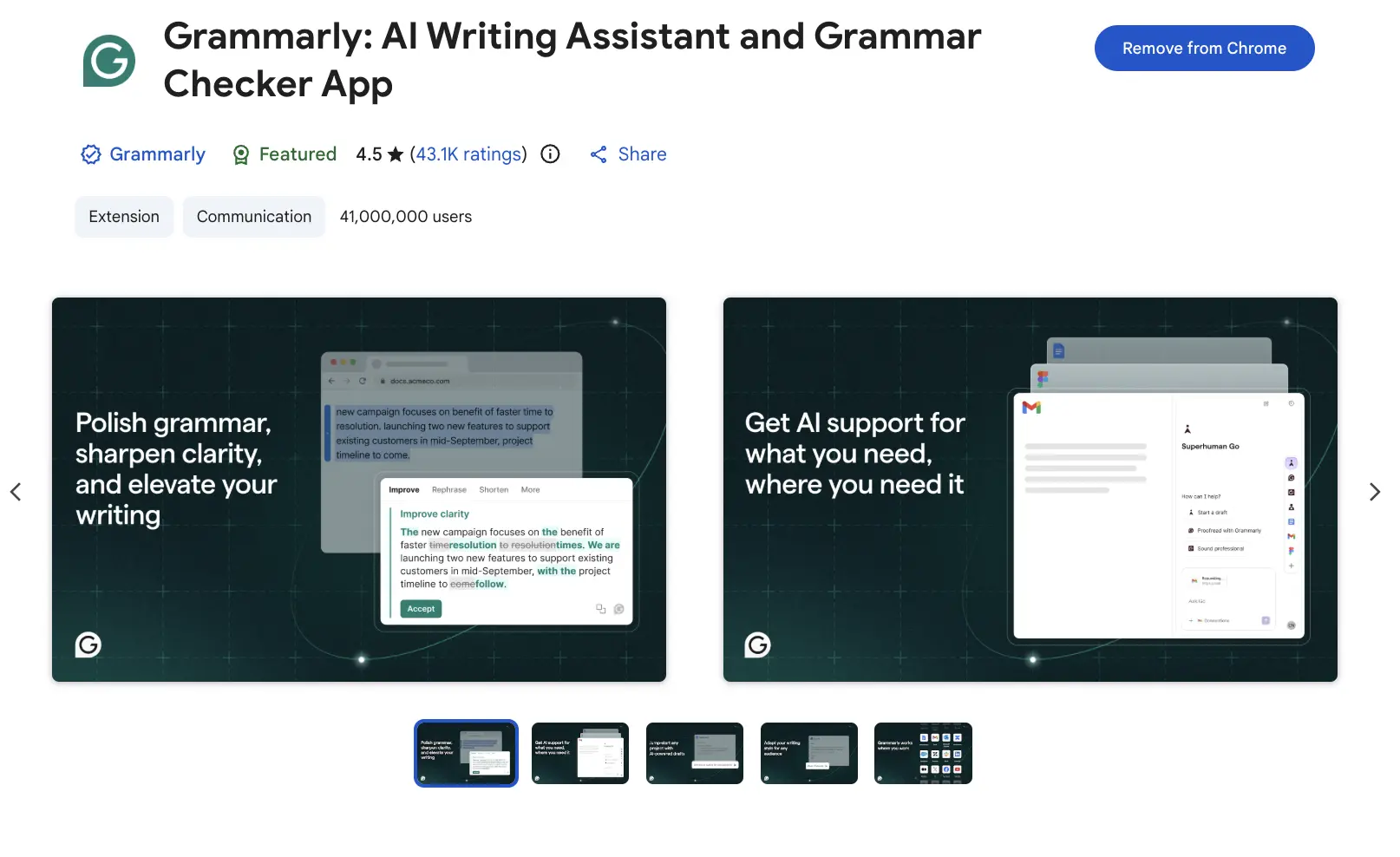
Grammarly works in the background on all text areas in Chrome. This includes LinkedIn messages, post composers, and comment boxes. Grammarly doesn’t help with content creation but finds grammar errors, highlights unclear sentences, and suggests tone changes in real time for existing content.
Best For: Anyone who writes frequently on LinkedIn and seeks a quality check in real time without needing a separate review step.
Most Useful Features:
- Real-time grammar and spelling correction catches errors as you type across all LinkedIn text fields
- Tone detector identifies whether your message reads as confident, friendly, formal, or assertive, and flags tones that may not match your intent
- Clarity rewrites suggest simpler, clearer alternatives to sentences that are technically correct but hard to read quickly
- Context-aware suggestions adjust their recommendations based on whether you're writing a LinkedIn post, a direct message, or a comment
- Cross-platform consistency assures that the messages are checked across Gmail, your CRM, and every other browser-based tool you use
How to Use Grammarly for Text Checking
Grammarly automatically runs in the background on all text fields across LinkedIn, including messages, post editors, and comment sections.
As you write, it underlines issues in real time and offers instant suggestions without interrupting your workflow. You can click on any suggestion to accept, ignore, or adjust it based on your intent.
9. Automate Outreach with LinkHelp
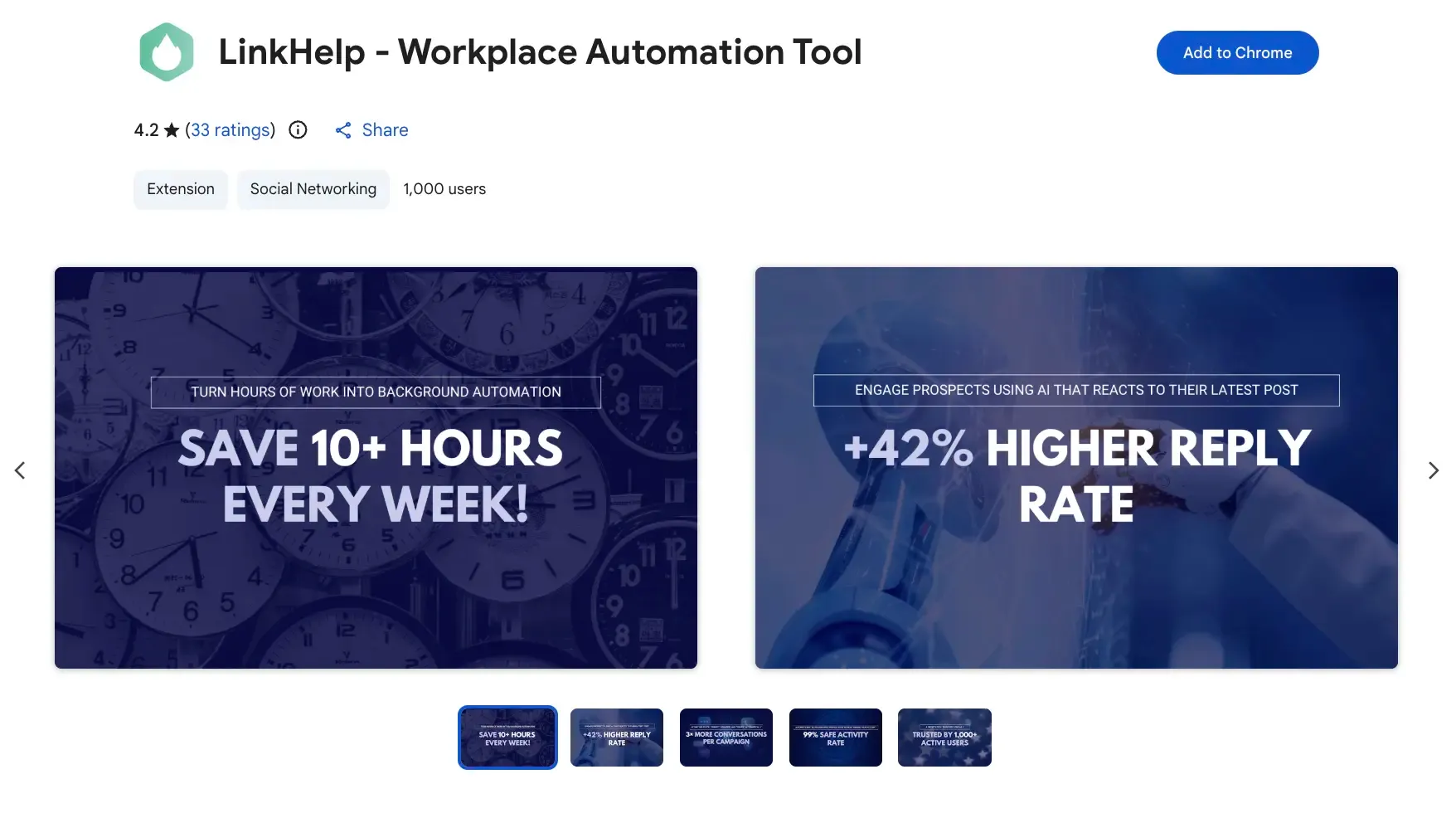
Most extensions on this list focus on just one part of the process, whether that’s finding emails, improving writing, or formatting posts. LinkHelp works more as an all-in-one LinkedIn automation extension.
It helps draft connection requests, follow-up messages, and replies based on the prospect’s LinkedIn profile and activity. With this extension, conversations feel more relevant from the start.
Best For: Founders, recruiters, and solo sales reps who want to automate repetitive LinkedIn outreach tasks; users who need AI-drafted messages generated from profile context rather than static templates.
Most Useful Features:
- AI message drafting generates personalized connection requests and follow-up messages using the prospect's profile content as input
- AI profile summaries produce a concise summary of any LinkedIn profile before you reach out, covering role, focus areas, and recent activity
- Automated connection campaigns send connection requests with personalized notes at scale, with daily limits to stay within LinkedIn's acceptable use range
- AI engagement feature drafts comments on prospect posts to increase visibility and warm up connections before direct outreach
- Campaign dashboard tracks connection acceptance rates, reply rates, and campaign performance across active sequences
How to Use LinkHelp for LinkedIn Outreach
Set up a connection campaign by defining your target audience. You can use LinkedIn search filters to narrow by role, industry, and location. LinkHelp will send connection requests with AI-generated, personalized notes to the filtered list while staying within the daily limits.
Once connections are accepted, set up an automated follow-up sequence that triggers after acceptance. Use the AI profile summary before replying so you have context about the person before continuing the conversation. Monitor campaign performance from the dashboard.
If the acceptance rate drops below 20%, review your connection note. It usually means the message is too generic or too sales-forward. Adjust the AI prompt inputs to generate more specific, relevant opening messages for your target audience.
Final Verdict: What Is the Best LinkedIn Chrome Extension for Sales and Marketing?
In this article, I’ve collected the top LinkedIn extensions for sales and marketing teams. These tools focus on key tasks such as content creation, LinkedIn prospecting, and contact discovery. The final choice depends on the tasks you perform in your daily routine.
Here's how each tool maps to the problem it solves:
- Skrapp.io is the right choice if your main goal is to find verified email addresses from LinkedIn profiles. It's fast, it's bulk-capable, and it exports directly to your CRM. For sales teams that live in LinkedIn and email, it removes the manual contact-finding step entirely.
- Kaspr adds phone numbers to that picture. If your outreach includes cold calls or if you sell into European markets where phone data is especially strong, Kaspr would be the best fit.
- Crystal is the right tool when tone and personalization directly influence whether a high-value prospect replies. It’s useful for enterprise AEs and anyone selling into senior buyers who can spot a generic opener immediately.
- Taplio is for marketers and content-led sellers who want to build a LinkedIn audience over time and convert that audience into inbound leads. The viral post library and scheduling features are the most useful.
- TextBlaze eliminates the time spent repeatedly writing the same messages. If you're sending high-volume LinkedIn DMs and spending 30 seconds on each one, TextBlaze cuts that to 3 seconds per message.
- Kleo is a LinkedIn Chrome extension for personal brand building. It's built for professionals and thought leaders who post consistently and want their AI-generated content to sound like them, not like a generic AI output.
- AuthoredUp will be of help if you write your own posts and want them formatted correctly, previewed across devices, and built on a tested hook. It's purpose-built for creators who value control over their content presentation.
- Grammarly is a go-to grammar-check extension that fixes all kinds of errors in messages, posts, and comments. The free version is enough for personal use, but the Pro plan won’t cost you much and is a better choice if you write frequently and want tone awareness in addition to grammar.
- LinkHelp is the right fit for founders, consultants, and independent recruiters who want to automate repetitive outreach tasks. The AI drafting features reduce the effort required for personalization, and the built-in safety features reduce the risk of LinkedIn account flags.
For most sales teams, the practical starting stack is Skrapp for email finding, Crystal for high-value accounts, TextBlaze for message efficiency, and Grammarly running in the background. That covers prospecting, personalization, speed, and quality: four distinct problems, four tools that don't overlap.
Scale your prospecting workflow with bulk email discovery from LinkedIn data
Find Emails in BulkFAQs: Top LinkedIn Chrome Extensions
What is a LinkedIn Chrome extension?
A LinkedIn Chrome extension is a browser add-on that adds functionality directly within LinkedIn, such as extracting contact data, formatting posts, personalizing outreach messages, or automating repetitive tasks. It runs inside Chrome and activates when you visit LinkedIn, without requiring a separate app.
How do I install a LinkedIn Chrome extension?
Go to the Chrome Web Store, search for the extension by name, and click "Add to Chrome." Once installed, the extension icon appears in your browser toolbar. Most LinkedIn extensions activate automatically when you open LinkedIn, and no additional setup is required beyond connecting your account.
Which LinkedIn Chrome extension is best for sales teams?
For building verified prospect lists, Skrapp.io gathers email addresses directly from LinkedIn profiles and exports them to your CRM. For phone numbers and multichannel outreach, Kaspr enriches profiles with direct dials. For personalizing messages before you write them, Crystal provides a personality breakdown of each prospect based on their LinkedIn profile.
Which LinkedIn Chrome extensions are best for marketing teams?
Taplio handles content scheduling, post analytics, and AI-assisted writing for teams focused on growing their LinkedIn audience. AuthoredUp gives content creators precise formatting control and cross-device preview before publishing. Grammarly runs across all LinkedIn text fields and keeps messaging consistent in tone and clarity.
Is it legal to use LinkedIn Chrome extensions?
Most LinkedIn Chrome extensions operate within LinkedIn's terms of service. Extensions like Skrapp.io, Grammarly, Crystal, and AuthoredUp are widely used by sales and marketing professionals without compliance issues. Always review LinkedIn's User Agreement and the extension's privacy policy before use, particularly for automation tools.
Can I use multiple LinkedIn Chrome extensions at the same time?
Yes. Most LinkedIn extensions run independently and do not conflict with each other. A common stack for sales teams combines Skrapp.io for email extraction, Grammarly for message quality, and Crystal for outreach personalization. They can all be active simultaneously without performance issues.
How do I find someone's contact details using a LinkedIn extension?
Install a contact finder like Skrapp.io, visit the LinkedIn profile of the person you're looking for, and click the extension icon. Skrapp instantly returns a verified email address for that contact. For phone numbers, Kaspr works the same way, adding direct dials and mobile numbers alongside the email.
How do I uninstall a LinkedIn Chrome extension?
Right-click the extension icon in your Chrome toolbar and select "Remove from Chrome." Alternatively, go to chrome://extensions, find the extension, and click "Remove." Uninstalling is instant and does not affect your LinkedIn account or any data already exported.
Do LinkedIn Chrome extensions work with Sales Navigator?
Several do. Skrapp.io, Kaspr, and Taplio all integrate with Sales Navigator, allowing you to extract contact data or enrich prospect lists directly from filtered Sales Navigator searches, which significantly speeds up prospecting at scale.
Are LinkedIn Chrome extensions free?
Most offer a free tier with limited credits or features. Skrapp.io and Kaspr both have free plans that cover a set number of contact lookups per month. It's enough to test the workflow before committing to a paid plan. Tools like Grammarly and TextBlaze also have useful free tiers.