
How to Source Candidates on LinkedIn in 2026: 7-Step Workflow

A good LinkedIn candidate search begins with a question: who exactly are you looking for? Then, you use a few active and passive sourcing techniques to find the right people.
LinkedIn now has over 1.2 billion members. With options this broad, you need to know how to narrow them down. In this guide, I’ll explain this process in seven steps. You’ll discover Boolean search strings, native platform filters, Skrapp contact finder, and other methods to source candidates on LinkedIn effectively.
No InMails on the free plan? Reach candidates by email instead.
Find Emails with SkrappDifferent Ways to Source Candidates
You can source and recruit candidates in two ways: passive and active.
- Passive sourcing means you post an open role on job boards, social media, and the like, and wait for potential candidates to respond
- Active sourcing, as the name suggests, means actively hunting for candidates. You look for people who fit the role and pitch them directly
The strongest strategy combines both. Active candidate sourcing lets you control who enters your hiring pipeline. Inbound applications, for their part, show you’re reaching motivated workers who want a role today.
That said, LinkedIn data reveals that roughly 70% of the global workforce is passive. These people aren’t currently browsing job boards. Even so, they will listen when the right opportunity lands in their inbox. That’s precisely why you shouldn’t overlook active recruitment.
Let’s now compare the two approaches side by side:
| Factor | Active recruitment | Passive recruitment |
|---|---|---|
| Initiator | You or your hiring team | Candidate, after seeing your public job posting |
| Targeting level | High, you search for people who match your criteria | Broad, you cast a wide net and wait for the right people to apply |
| Outreach | You or your recruiters contact candidates directly | Candidates respond to the vacancy or contact you |
| Audience size | Smaller, targeted pool | Larger, broader pool |
| Control | High, you decide whom to approach | Low, you filter whatever applicants come in |
| Best for | Hard-to-fill roles, niche skills, building talent pipelines for future hiring | High-volume hiring, easier-to-fill roles, attracting active job seekers |
| Main challenge | Requires time to research, qualify, contact, and nurture candidates | Requires sorting unqualified resumes, may come with irrelevant applications |
| Tools used | LinkedIn, LinkedIn Recruiter Lite, LinkedIn Recruiter, LinkedIn Sales Navigator, Skrapp | Indeed, ZipRecruiter, Upwork, Fiverr, LinkedIn Job Posts/Slots, Ashby, Workable |
Passive Candidate Sourcing
So, what is passive candidate sourcing in a nutshell?
You draft the job description (plus your offerings) and publish it where your target candidates will likely see it. Once people apply, you screen resumes and move the best matches further into the hiring pipeline.
Useful channels and tools for passive sourcing include job boards such as Indeed and ZipRecruiter, freelance marketplaces like Upwork and Fiverr, LinkedIn Job Posts or Slots, and applicant tracking systems such as Workable or Ashby.
Active Candidate Sourcing
Unlike passive talent sourcing, you don’t wait for applications. You actively look for suitable candidates yourself.
It all starts with defining your ideal candidate. Next, you search through various channels: social media, professional networks, industry events, or referrals. From there, you make a rough list of candidates, find their contact info, and reach out with a personalized message.
The main active sourcing tools include LinkedIn, LinkedIn Recruiter, LinkedIn Recruiter Lite, and LinkedIn Sales Navigator for talent discovery and outreach, as well as Skrapp for finding and verifying candidate email addresses.
Sourcing actively? Skrapp finds candidates' verified emails in one click.
Start Finding EmailsWhich LinkedIn Plan Should You Use for Active Sourcing?
Passive sourcing is pretty straightforward: just post a vacancy and wait. Active sourcing is more intentional and bold. You need the right filters to find talent and the right means to initiate conversations.
LinkedIn offers several products that support these processes. You can start with the basic version to source candidates for free. Or you can upgrade to any of the following paid options:
- LinkedIn Recruiter Lite
- LinkedIn Recruiter
- LinkedIn Sales Navigator
Your choice depends on the following criteria:
- How often you hire
- How focused your search should be
- How much of the recruiting process you want to automate
- What your outreach strategy is
Here’s a quick look at each of the products:
| Best for | What it lets you do | Main limitations | |
|---|---|---|---|
| LinkedIn Free | Solo founders or small teams making 1–2 occasional hires a year | Search up to 3rd-degree connections, use 6 basic search filters, message 1st-degree connections, post 1 free job | Heavy manual tracking, limited search capabilities, no InMails |
| LinkedIn Recruiter Lite | Individual recruiters and small teams with occasional hiring and basic sourcing needs | Access up to 3rd-degree network, use 20+ search filters, send 30 InMails monthly, get 2,000 profile views daily | Search limited to your network, low InMail allowance (bypass that with Skrapp), limited automation and collaboration features |
| LinkedIn Recruiter | Large recruiting teams and companies hiring continuously | Search the entire 1B+ talent pool, use 40+ advanced search filters, send 150 InMails monthly, enjoy the AI-powered Hiring Assistant | Higher cost, message limits can still negatively impact large outreach campaigns (unless paired with external tools like Skrapp) |
| LinkedIn Sales Navigator | Recruiters looking for targeted search filters at a mid-range price | Use 50+ advanced search filters, send 50 InMails monthly, save leads, track prospects | Built primarily for sales, so it may lack some dedicated hiring and candidate management features |
LinkedIn Free
If you hire only once or twice a year, paying for a whole recruiting solution may not make much sense. In that case, free LinkedIn sourcing is usually enough.
It covers basic active sourcing tasks, but still requires some manual work. Since you cannot send InMails without being connected, you must send connection requests each time. Or you’ll need an additional tool like Skrapp to find contact info.
Despite the limitations, using LinkedIn for recruitment on a free basis lets you:
- View people up to your 3rd-degree network
- Use 6 basic search filters, such as job title, location, industry, company, school, and language
- Contact 1st-degree connections using LinkedIn’s messaging platform
- Post one free job opening at a time for up to 30 days
For occasional hiring, this is plenty.
Use LinkedIn for filtering and Skrapp for contact search.
Install Skrapp ExtensionLinkedIn Recruiter Lite
Recruiter Lite is a middle ground between the free LinkedIn experience and the full Recruiter platform.
If you hire a few people a year and feel like you don’t need an enterprise-level solution yet, this option might be just right for you. It upgrades your search tools and gives you basic applicant management features. However, you remain locked within your 3rd-degree network.
Still, LinkedIn Recruiter Lite offers:
- Over 20 candidate-related filters, including years of experience, seniority, and skills, enhanced by Boolean search capabilities
- 2,000 profile views per day with candidate recommendations based on your previous searches
- 30 InMails per month to message professionals outside your network
- Basic reporting and analytics on InMail response rates, candidate demographics, and job post activity
Thirty InMails vanish quickly if you’re searching for multiple roles at once. To overcome this limit, combine Recruiter Lite with Skrapp. Using our tool, you can extract verified candidate emails in bulk. Keep reading this guide to learn how.
LinkedIn Recruiter
If Recruiter Lite covers the essentials, what is LinkedIn Recruiter capable of?
Unlike its counterpart, this tier removes all network boundaries. It lets you search every single LinkedIn profile, even if you don’t have mutual connections. That makes LinkedIn Recruiter perfect for high-volume hiring.
While full network access is certainly a huge perk, it’s not the only way Recruiter helps with large talent pipelines. It offers automation (including AI), advanced search filters, and a lot more.
Here’s how to use LinkedIn Recruiter:
- Access more than 1 billion member profiles
- Apply over 40 advanced filters, Boolean search, as well as spotlights such as #OpenToWork and More Likely to Respond
- View as many candidate profiles as you need, as there are no limits
- Send 150 InMails per month per seat with bulk messaging capabilities
- Allow AI-powered Hiring Assistant to source candidates, evaluate applications against your criteria, and generate outreach messages
- Leverage advanced analytics and reporting that covers InMails, Jobs, pipeline, usage, and other recruitment aspects
The cherry on top is applicant tracking system (ATS) integration. If you already use one, LinkedIn Recruiter lets you sync candidate information directly.
LinkedIn Sales Navigator
This one may seem less obvious than the previous products. LinkedIn built it primarily for lead generation and sales prospecting. Still, using Sales Navigator for recruitment can be effective.
If you’re on a tight budget and aren’t really looking for advanced candidate management features, Sales Navigator might work just fine. It’s can be really useful if your priority is finding specific people and building relationships with them.
LinkedIn Sales Navigator for recruitment offers:
- Over 50 search filters, making your targeting pretty advanced
- 50 InMails per month, ensuring solid outreach opportunities
- The option to save people as leads and monitor their activity
- Alerts when saved prospects change roles or publish new content
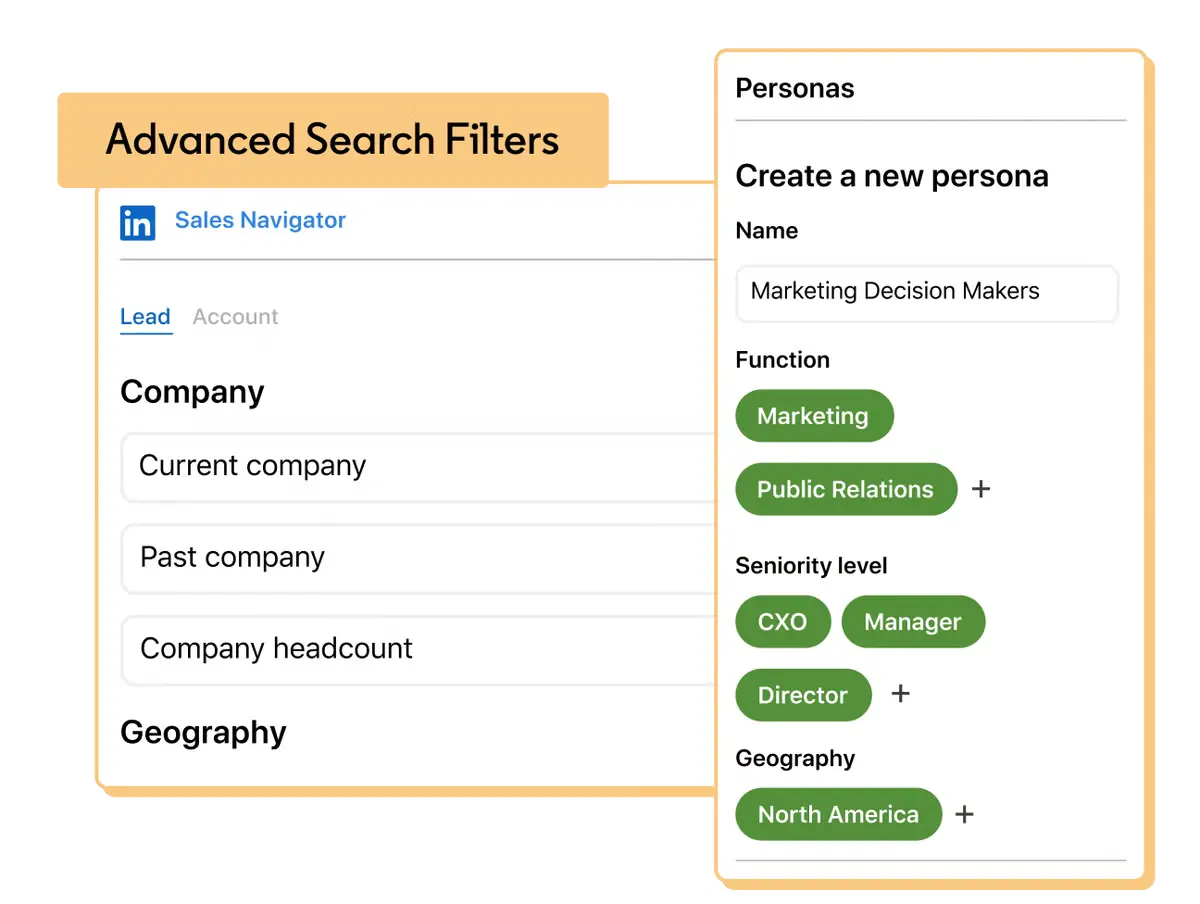
Overall, you get unmatched search depth for your money, as long as you don’t mind tracking candidates manually.
How to Search for Candidates on LinkedIn
You already know the tools at your disposal. Let’s now see how to find candidates on LinkedIn using them.
Here’s a seven-step process that takes you from determining your ideal candidate to building an entire talent pool:
1. Define your ideal candidate before searching
First things first: who are you looking for?
Before you go on LinkedIn, describe your ideal candidate in detail. This will make it easier to decide which profiles are worth pursuing.
Consider the following:
- Skills: List hard and soft skills required for the role. Divide the must-haves and nice-to-haves.
- Experience: Set expectations for years of industry experience or seniority levels.
- Credentials: Specify licenses, degrees, or certifications your candidate should have.
- Background and fit: Consider which previous roles, companies, industries, or types of experience could indicate a suitable candidate.
- Expected outcomes: Outline what a successful hire looks like within the first 6 to 12 months.
Write these benchmarks down to keep your search disciplined and ultimately find applicants on LinkedIn.
Find verified emails for ideal candidates on LinkedIn
Start Using Skrapp2. Build a targeted Boolean search
One of LinkedIn’s most helpful sourcing features is Boolean search. It lets you combine keywords with logical operators (AND, OR, and NOT) to broaden or narrow down your search.
Once you know what candidate you’re looking for, turn your criteria into a Boolean string. Then, enter it into LinkedIn’s search bar at the top of the page.
Here are the main operators to use:
- AND: Type AND in uppercase between keywords to find profiles containing all the specified terms. This would usually narrow your search results. For example, engineer AND python.
- OR: Type OR in uppercase between keywords to find profiles matching any of the specified terms. This would usually broaden your search results. For example, manager OR director.
- NOT: Type NOT in uppercase to exclude specific terms. This would usually narrow your search results. For example, developer NOT manager.
- Quotations: Get search results for an exact phrase by putting it inside quotation marks (“ ”). For example, “senior product analyst”.
- Parentheses: Group multiple criteria together by using parentheses. For example, engineer AND (python OR java).
Boolean search may face limitations depending on your LinkedIn plan. Free accounts must keep their queries short. Sales Navigator users can apply up to 15 operators per string. Recruiter Lite and Recruiter are the most generous options, as they let you build Boolean search strings without limits.
3. Narrow the candidate pool with LinkedIn filters
Boolean search is a strong starting point. Filters narrow the results even further.
Depending on your LinkedIn version, you can use different sets of filters compatible with Boolean search. Here’s what’s possible in each plan:
- LinkedIn Free: Apply standard filters on top of your Boolean query.
- Recruiter Lite and Recruiter: Apply Boolean rules right inside the filter menus for Job titles, Location, Companies, Skills and Assessments, Schools, Industries, and Spoken languages. Selecting Must have works as AND, Can have as OR, and Doesn’t have as NOT.
- Sales Navigator: Use Boolean logic inside the Title, Company, and Keywords filter fields.
Beyond Boolean strings, you can simply combine keywords with your tier’s advanced filters. Once your search produces a promising candidate list, save it along with the queries to reuse them later.
Use Sales Navigator + Skrapp as your hiring combo (50InMails + 2,000 emails min).
Use Skrapp with Sales Navigator4. Prioritize candidates using LinkedIn signals
LinkedIn signals are clues or actions that show which candidates are active on the platform and more likely to connect. These include recent profile updates, job changes, content engagement, #OpenToWork status, and similar behaviors/indicators.
At this point, go through your list of candidates. Have any of them recently left a comment under the industry leader’s post? Maybe some edited their profile, added new services, and so on?
Of course, these signals don’t guarantee someone wants a new job. However, they can hint at how responsive those people are. Based on that information, shortlist your candidates and rank those remaining for outreach.
5. Find and verify candidate contact details
So, you’ve figured out how to search LinkedIn for candidates and found the right ones. Now you need to reach them.
You could open profiles one after another, find contact information, and manually copy-paste it into a spreadsheet. But that is tedious, especially when you’re dealing with lengthy candidate lists.
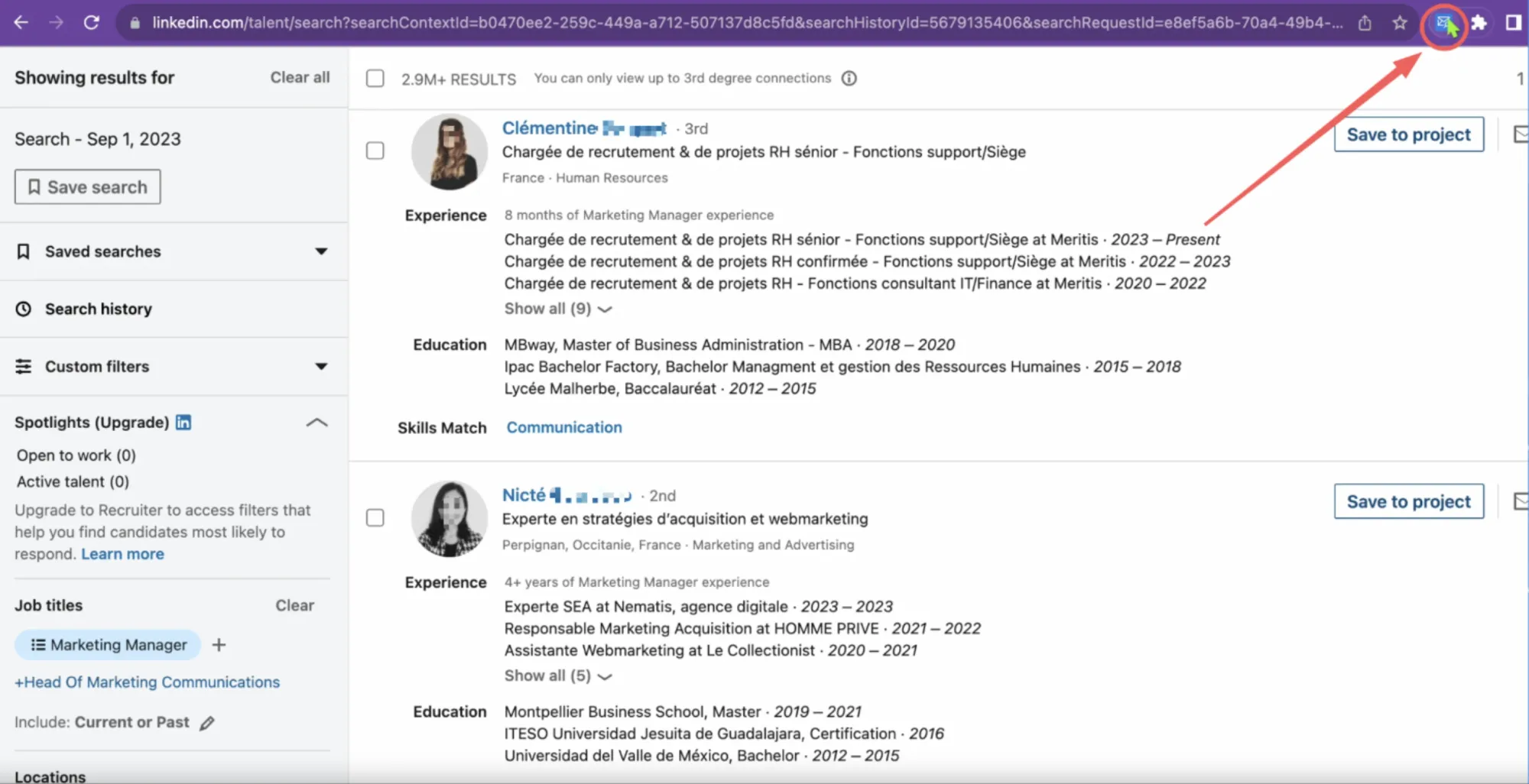
Luckily, Skrapp simplifies the process. Just install our LinkedIn Email Finder Chrome extension and follow these steps to enrich contact info:
- Search: Log in to your free LinkedIn/Recruiter Lite/Recruiter/Sales Navigator account and run a search from there.
- Extract: Once you see candidate profiles, launch the Skrapp extension to extract verified business emails one by one or in bulk.
- Save: Save the data in Skrapp, sync it with your CRM, or export it in a .CSV or .XLSX format.
6. Expand your search through companies and communities
Still haven’t found enough candidates? Expand your search beyond profiles.
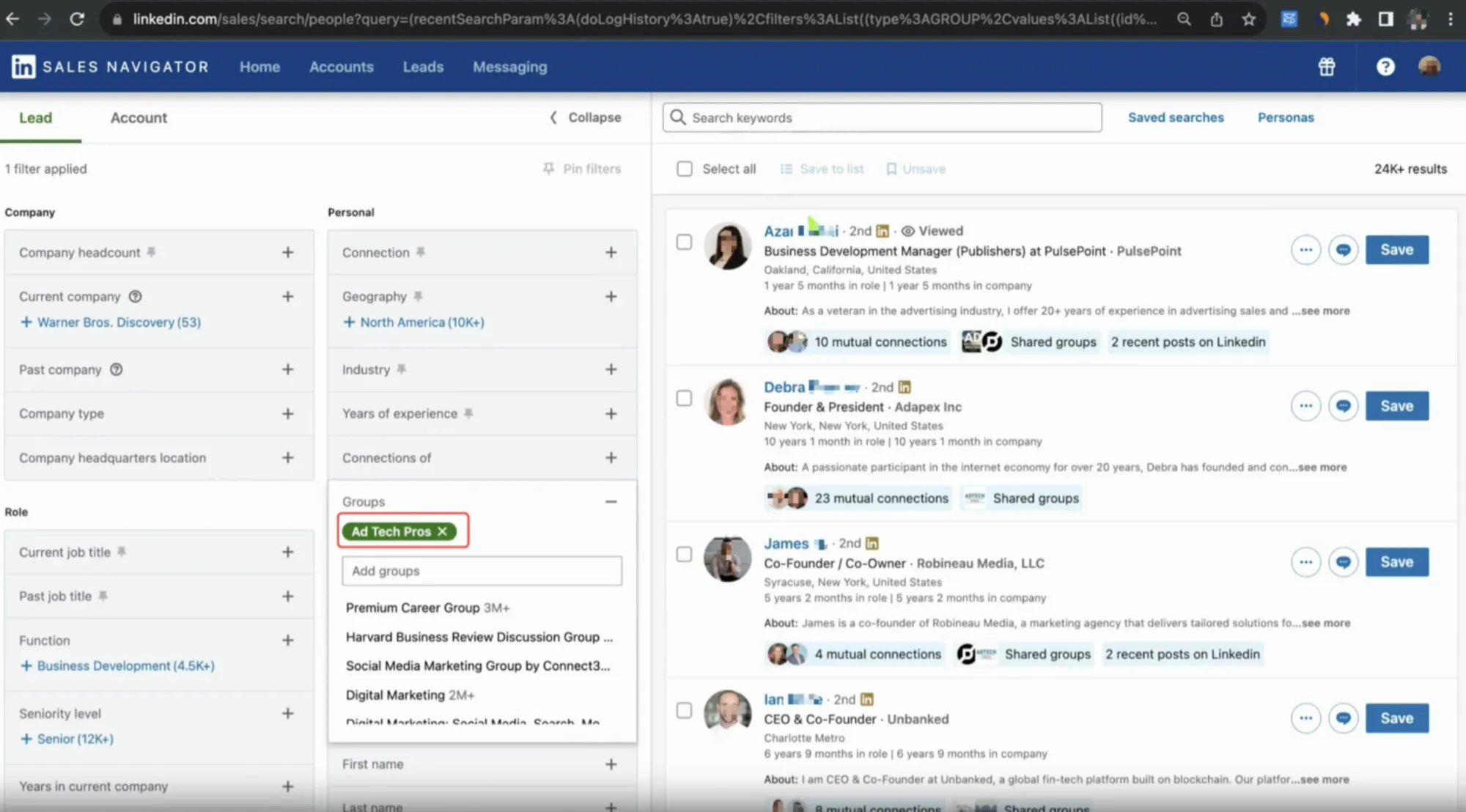
Look at companies that hire people with the skills you seek. Explore relevant LinkedIn communities and groups. This way, you’ll find candidates who didn’t appear in your initial search.
If you’re using Sales Navigator, combine it with Skrapp to browse LinkedIn Groups more effectively. Filter candidates by shared Groups under the Personal filter category. Then, use Skrapp to enrich those group members with verified emails.
7. Find similar candidates and build your talent pool
You need a steady LinkedIn recruitment pipeline, even when you fill the current role. Thus, don’t put your hiring tools away forever.
Instead, save successful searches, candidate lists, groups, and companies. Revisit them when you open a similar position. Plus, consider your best candidates as a foundation for matching searches.
If you use LinkedIn Recruiter, try Recommended Matches. This AI-powered feature analyzes signals from your hiring activity and suggests candidates accordingly.
The whole point of creating a talent pool is to avoid starting from scratch every time you need a new employee.
How to Automate LinkedIn Candidate Sourcing
Nailing LinkedIn search is only part of the job. If you keep clicking profiles and sending messages manually every single day, you’ll eventually get exhausted.
Here are a few ways to automate LinkedIn candidate sourcing:
Use LinkedIn AI Assistant to shortlist candidates
Hiring Assistant, part of LinkedIn Recruiter, instantly checks large applicant pools from LinkedIn or your ATS against your criteria. It then highlights the most relevant matches. This saves an average of 1.5 hours per role in identifying top applicants.
Set up alerts to find new candidates automatically
LinkedIn Recruiter can notify you when new candidates match your saved searches. To receive alerts as push notifications or email updates, go to Product settings → My account settings → Notifications.
Use an email finder to extract and verify candidate contacts in bulk
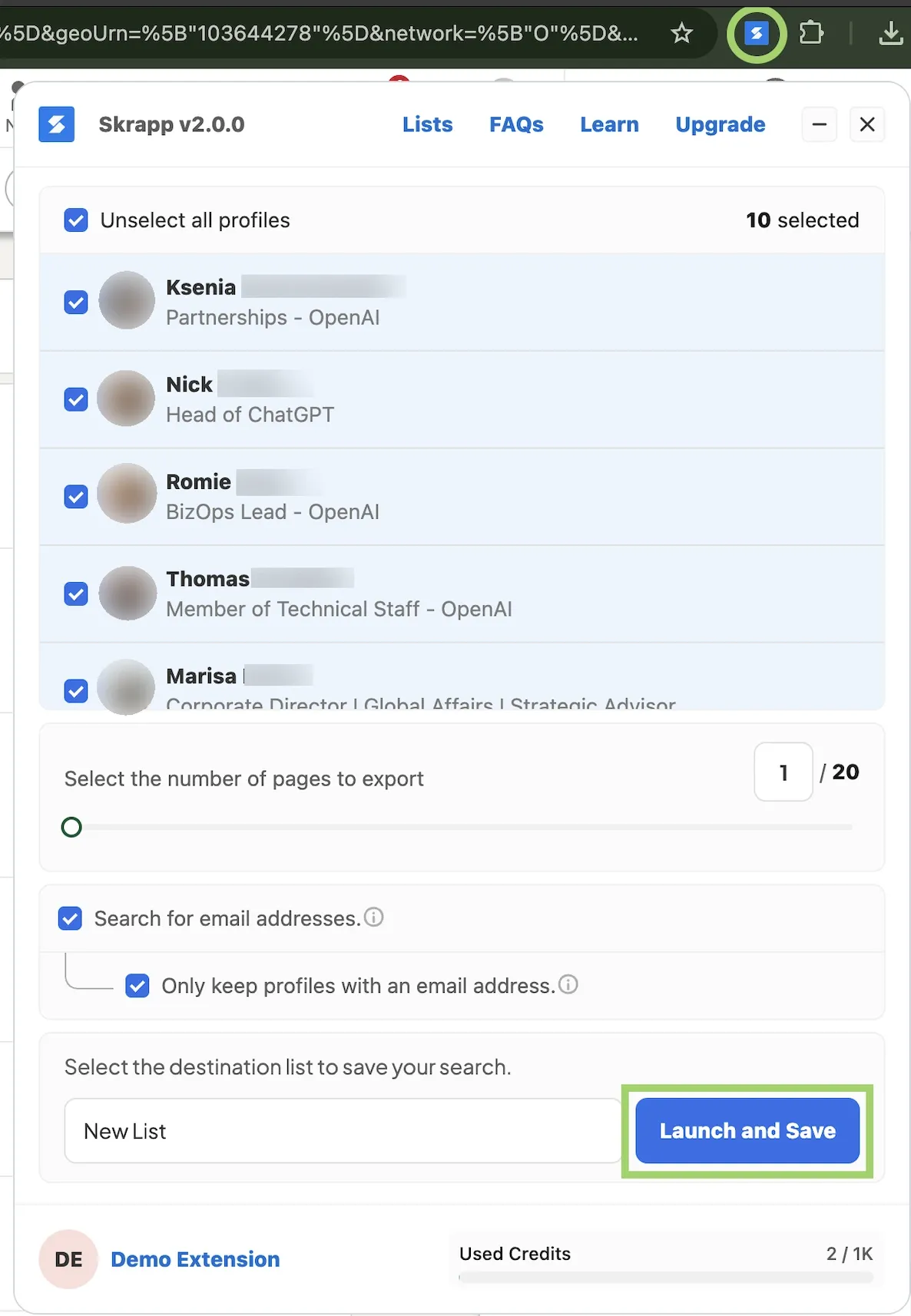
Instead of looking up each email individually, use an email finder like Skrapp to enrich candidate lists in bulk. Open your search results → Launch our Chrome extension → Select your profile volume → Find and save extracted emails.
| Free | Recruiter Lite and Recruiter | LinkedIn Sales Navigator |
|---|---|---|
| Up to 200 profiles daily | Up to 1,000 profiles daily | Up to 2,500 profiles daily |
Connect LinkedIn Recruiter to your ATS or recruiting CRM
Connect Recruiter directly to your ATS or CRM. This way, you’ll be able to export full profiles in one click, avoid duplicates, check for recent updates right from your dashboard, and centralize communication.
Automate candidate outreach and follow-ups beyond InMail
You don’t have to rely on LinkedIn InMail entirely. Once you’ve gathered verified email addresses from Skrapp, you can use third-party tools for outreach and follow-ups.
The Bottom Line
Mastering how to source candidates on LinkedIn Recruiter requires a clear candidate profile, precise search methods, and consistent outreach.
To truly succeed, follow our seven-step workflow, combine Boolean search with LinkedIn’s filters and signals, and consider paid LinkedIn products for advanced sourcing features. Whenever you hit limitations, use third-party tools like Skrapp for tasks that LinkedIn doesn’t cover.
Use Skrapp for email search with LinkedIn Free, Lite, Recruiter, and Sales Navigator.
Get the Chrome ExtensionFAQs: Sourcing Candidates on LinkedIn
Can I find candidates on LinkedIn without paying for Recruiter?
Yes. A free account supports Boolean search and six basic filters (title, location, industry, company, school, language). It's enough for occasional hiring, but you have only 3rd-degree network reach and no InMail. Pair free search with Skrapp to uncover verified emails from the profiles you find, so outreach doesn't depend on connection requests or InMail credits at all.
What's the difference between an InMail and a connection request?
A connection request is free, but it requires the candidate's approval before you can message them. InMail (paid, credit-based) reaches anyone instantly but is capped monthly. A third option: use Skrapp to get the candidate's email and message them directly, with no approval wait and a 2,000-credit limit on the most affordable plan.
How many InMails can I send per month?
Roughly 30 InMails per month on Recruiter Lite, 50 on Sales Navigator, and 150 on full Recruiter. Once you hit that ceiling, run your remaining candidate list through Skrapp to get verified emails and continue outreach by email instead of waiting for next month's credits.
What does the "Open to Work" badge mean, and can I rely on it?
A green profile-picture banner signals that the user is an active job seeker. It's useful, but not complete. Many open candidates skip it for privacy reasons, so also check headlines/About sections for phrases like "open to opportunities."
What response rate should I expect from LinkedIn outreach?
InMail response rates run 10–25%, well above average cold email (3–5%), and short messages under ~400 characters perform best. Time-to-fill depends on role seniority and skill scarcity, but combining LinkedIn search with Skrapp for email outreach shortens the wait for InMail credits or connection acceptances.
Which LinkedIn plan is worth it for sourcing passive candidates at scale?
Free/Boolean search covers occasional hiring; Recruiter Lite or Sales Navigator suits regular sourcing; full Recruiter is worth it mainly for continuous, multi-role hiring. At any tier, adding Skrapp for bulk email verification reduces how much you depend on InMail limits to reach candidates.
What are the best LinkedIn Recruiter alternatives for sourcing candidates?
LinkedIn Sales Navigator is the closest lower-cost alternative. It offers 50+ filters and lead tracking, though it's built for sales rather than hiring. Basic LinkedIn (free) works for light, occasional sourcing. Neither matches Recruiter's InMail volume, so most teams pair either option with Skrapp to pull verified candidate emails and message outside LinkedIn entirely, closing the outreach gap without paying for the full Recruiter seat.
Can I export LinkedIn search results to a spreadsheet?
Not directly; LinkedIn doesn't offer a native "export to CSV" for search results. Recruiter can sync to an ATS, but for a plain spreadsheet, run your candidate list through Skrapp and export as a CSV or XLSX with verified emails attached.
Will LinkedIn restrict or ban my account for using an email finder tool?
Risk depends on the tool's behavior, not just its purpose. Headless bots that auto-scrape pages in bulk can trigger LinkedIn's detection and get an account restricted. Browser extensions like Skrapp that work through your own authenticated session, one profile view at a time, carry much lower risk, but no third-party tool is risk-free, so keep usage reasonable and human-paced.
Is LinkedIn or Indeed better for sourcing candidates?
They serve different jobs. Indeed is stronger for high-volume, easier-to-fill roles where you want active job seekers to apply to you. LinkedIn is stronger for active, targeted sourcing: niche skills, passive candidates, and outreach to people who aren't job hunting yet. Most recruiters use Indeed for inbound volume and LinkedIn (plus Skrapp for contact info) for direct, targeted hiring.