


Skrapp MCP
Bring Skrapp into Claude, ChatGPT, Cursor and any MCP client: find verified business emails and phone numbers, and search and enrich company data in plain language.
Connect Skrapp to your AI assistant
Add Skrapp as a custom connector: paste one URL and sign in with your Skrapp account. No code, nothing to install.

Claude
Claude.ai on the web, or the Claude desktop app. Paid plans.
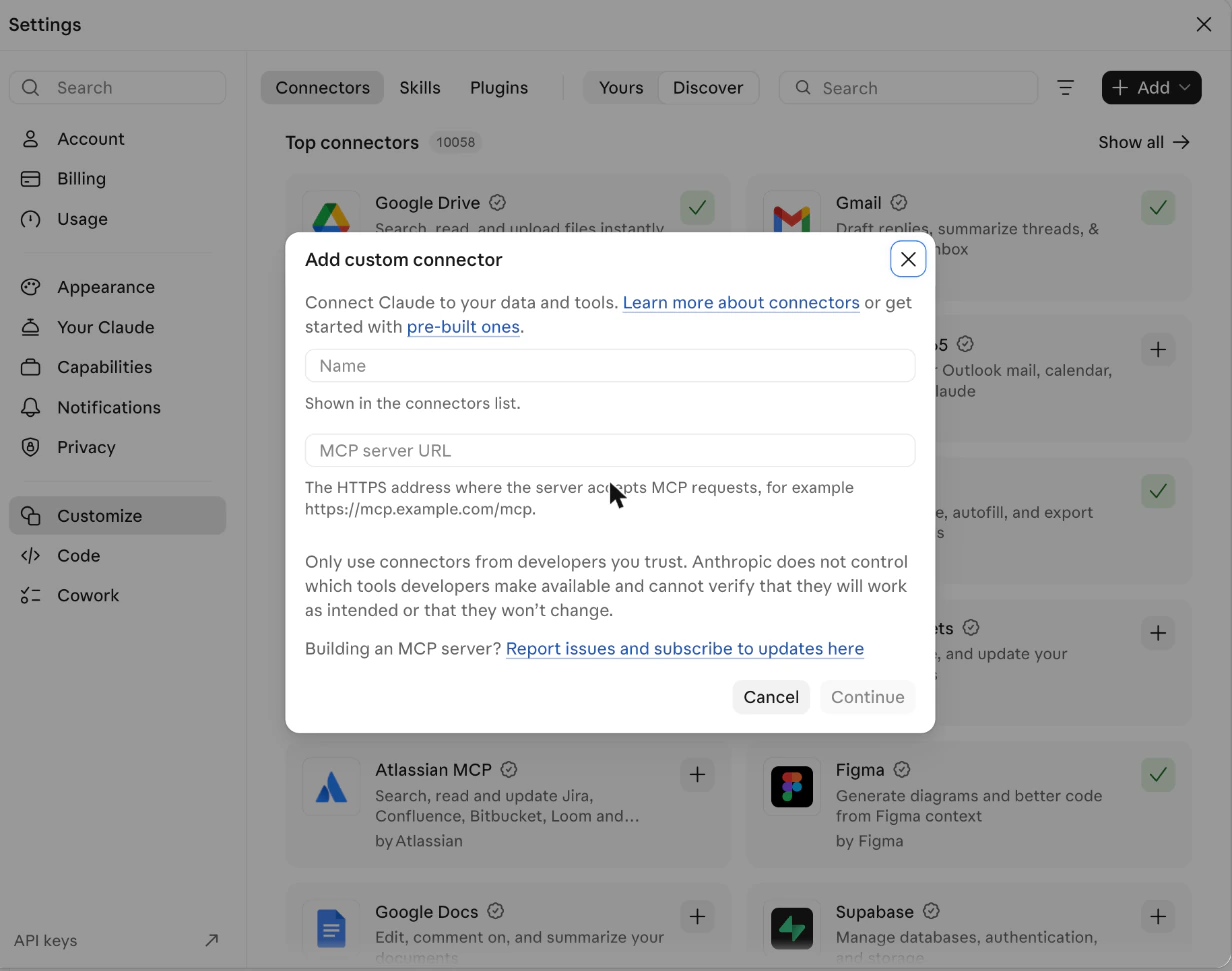
- Open Settings, then Customize. The Connectors tab is selected.
- Click + Add at the top right, then Add custom connector (not one of the listed connectors).
- Name it Skrapp, paste as the MCP server URL, and click Continue.
- Authentication shows Sign in now; keep it and click Add. A Skrapp page opens; sign in and click Allow. Skrapp now appears in the tools menu of every chat.

ChatGPT
ChatGPT.com or the desktop app.
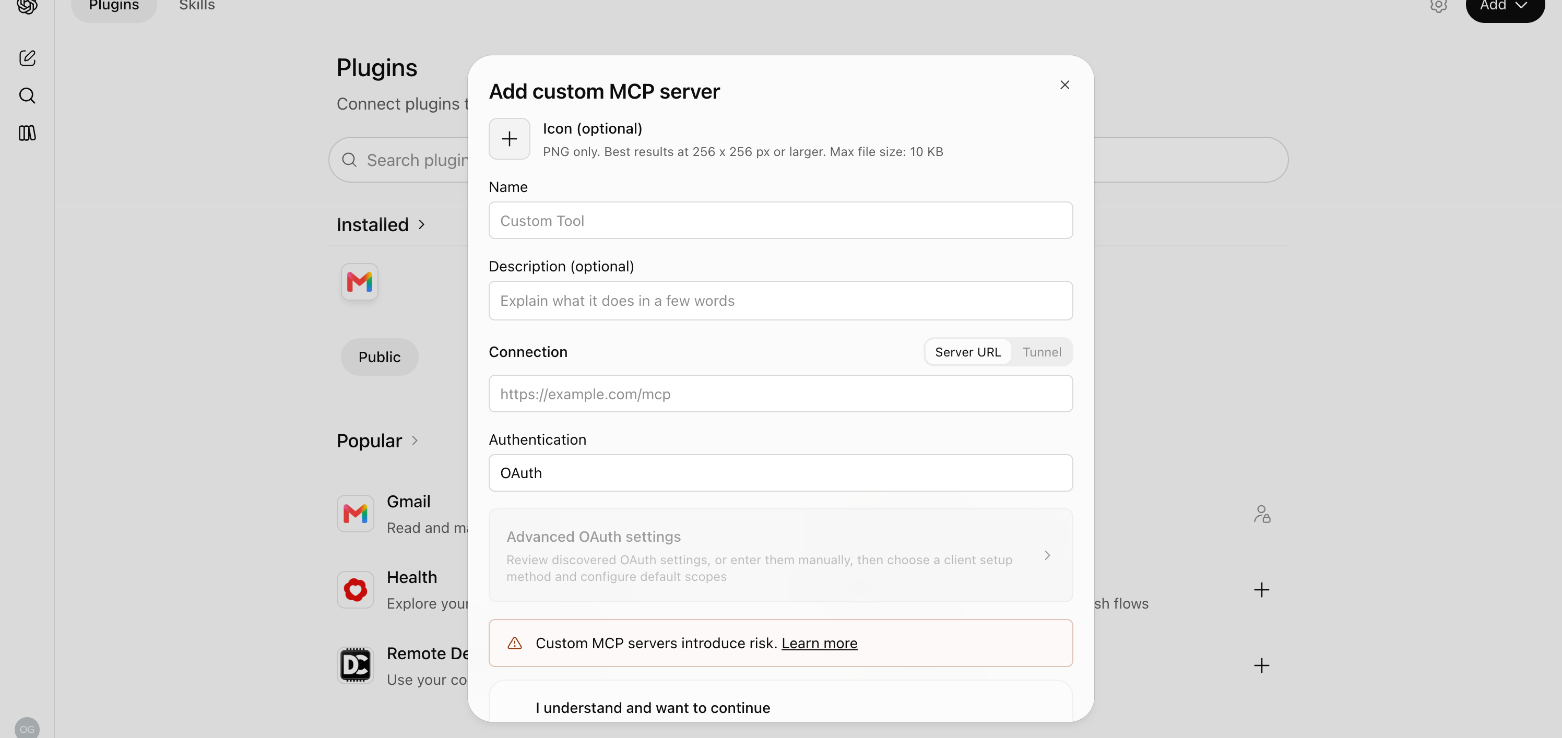
- Open Plugins in the left sidebar, then click Add at the top right and choose Add custom MCP server.
- Name it Skrapp, keep Server URL as the connection and paste .
- Leave Authentication on OAuth, tick I understand and want to continue, and click Add.
- ChatGPT sends you to Skrapp to sign in and approve. Skrapp is then available from the + menu of a chat.

Perplexity
Perplexity.ai or the desktop app.
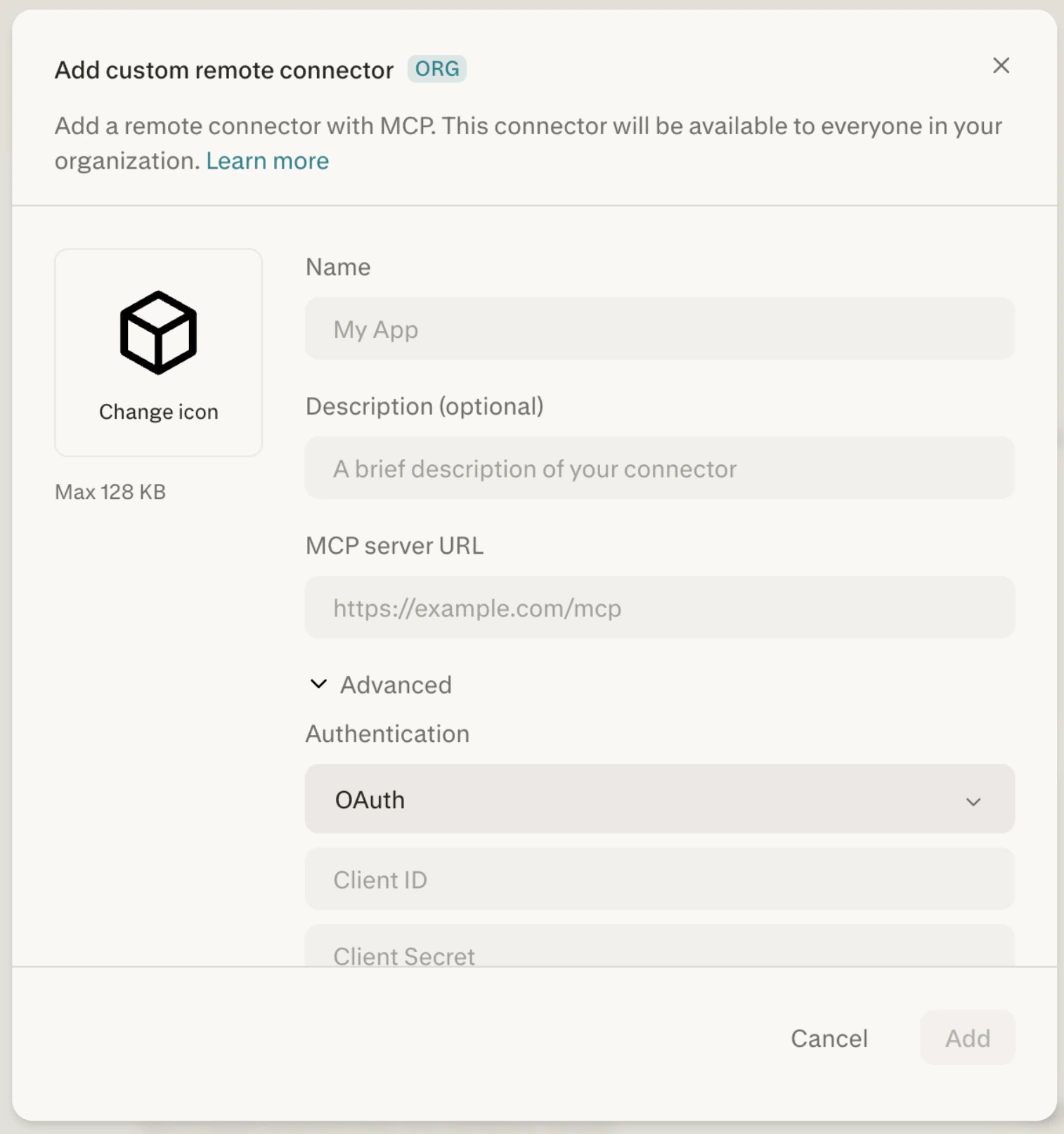
- Open Settings → Connectors, and click Add custom.
- Choose Connector, then Add MCP connector, and select Remote.
- Name it Skrapp, paste as the MCP server URL, keep OAuth as the authentication, tick the acknowledgement and click Add.
- Click the new Skrapp card, sign in to Skrapp and click Allow. Skrapp is then available in your threads.

Grok
Grok.com, or the Grok app on iOS and Android. All plans.
- Open Connectors (on the web: click + in a chat, then Connectors; in the app: Settings, then Connectors).
- Click New Connector, then Custom.
- Paste as the MCP server URL and continue.
- Grok sends you to Skrapp to sign in and click Allow. Skrapp is then available in your chats.
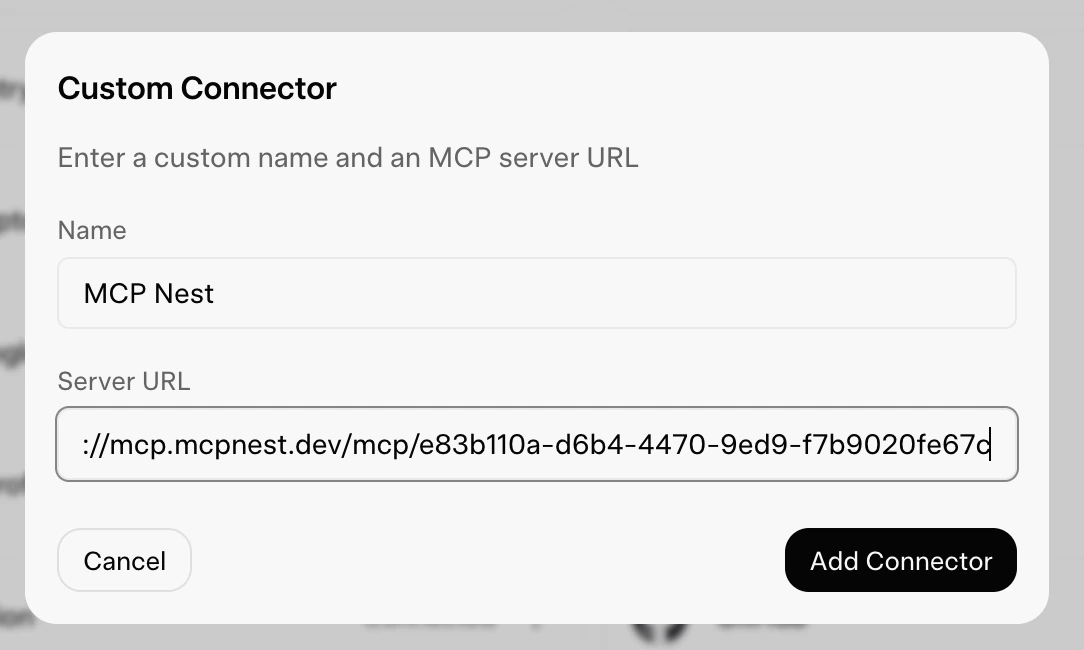

Mistral
Chat.mistral.ai (Le Chat, now Vibe). On Free, Pro and Student plans the account owner can add connectors; on team plans ask your admin.
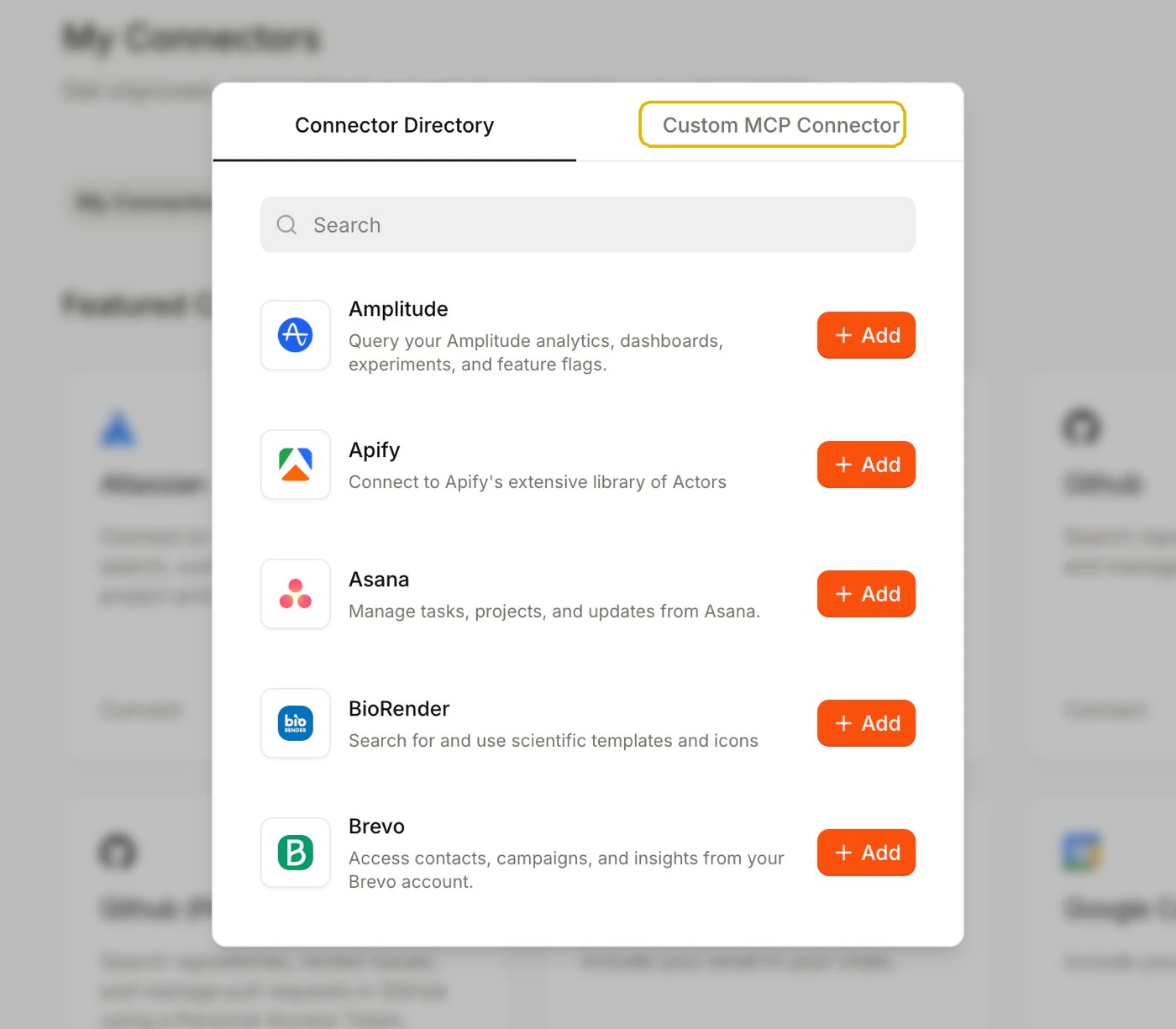
- Open Connectors from the sidebar and click + Add Connector.
- Switch to the Custom MCP Connector tab.
- Enter Skrapp as the connector name, paste as the server URL, and click Connect.
- Sign in to Skrapp when asked and click Allow. Enable Skrapp in a chat from the tools menu.

Microsoft Copilot
Microsoft 365 Copilot, through Copilot Studio. Needs a Copilot Studio license or trial; the Copilot app alone cannot add custom servers.
- In Copilot Studio, open your agent, then Tools, then Add a tool, then New tool.
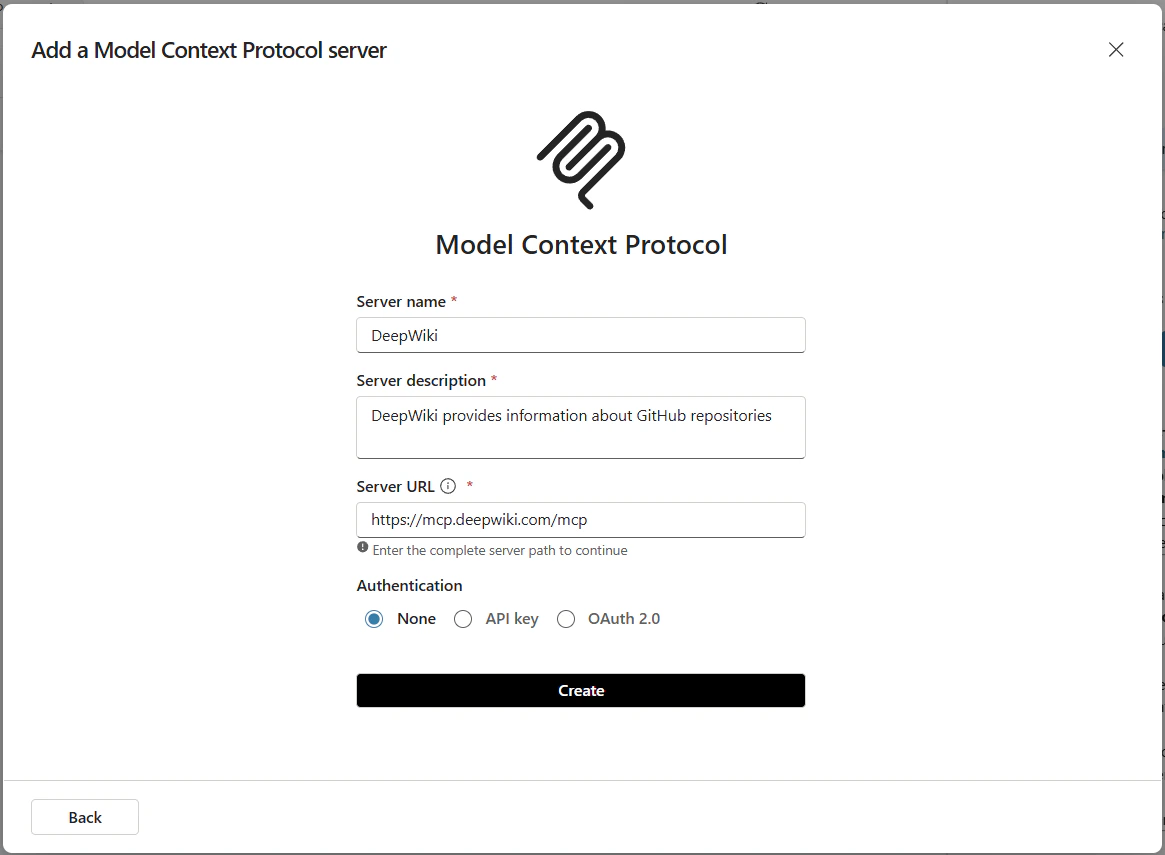
- Under Create new, choose Model Context Protocol.
- Enter Skrapp as the server name and a short description, paste as the server URL, and set Authentication to OAuth 2.0 with Dynamic discovery.
- Click Create, then Add to agent, and sign in to Skrapp when the connection is created.
No Skrapp account yet? Create one for free and come back to this page.
What you can ask for
Search for leads and companies, research accounts, find and verify emails and phone numbers, then save everyone to a list, all in one conversation.
Search for leads and companies
Filter by title, location, industry, size, revenue, funding and more, then page through the results.
Research a company
Start with a free snapshot: size, industry, HQ and website. Go deeper on request: headcount trends, funding, financials, hiring, tech stack, competitors and signals.
Find someone’s email
Give a name and a company to get their verified work email, plus the email pattern that company uses. Works for one person or a whole list.
Find a phone number
Start from a LinkedIn profile, or a name plus a company or country. You get mobile, direct and company numbers, each with a confidence level.
Verify emails
Check one address or a batch before a campaign. Each comes back as valid, invalid, catch-all or unknown.
Save to lists
Create lists, add the people you found, read them back, and rename or delete lists, all from the chat.
Safe to leave running
Your credit balance is protected whether you watch the conversation or not.
It asks before it spends
Anything that costs more than a single credit, and anything that deletes, comes back as a quote first: the exact price and your current balance. Nothing happens until you say yes.
A refusal is never charged
Not enough credits, a daily limit, an expired trial, a person that does not exist: the assistant is told plainly, with the time to wait if there is one, and nothing is deducted.
Speed limits built in
An assistant stuck in a loop is slowed down after a few hundred calls a minute instead of draining your balance.
You stay in control
You sign in with your Skrapp account; there is no key to copy for Claude, ChatGPT or Perplexity. Disconnect the connector or revoke access from your account at any time.
Optional: give your assistant ground rules
Paste this at the start of a conversation, or into your assistant’s instructions. It tells the assistant to check your balance first, ask before larger spends and never retry a refusal. Credit figures are estimates: the real charge depends on what is found. Change the 100-credit threshold if you like.
You have access to the Skrapp MCP server (https://mcp.skrapp.io/). Use it to find and verify professional emails, look up phone numbers, search and enrich companies, and manage Skrapp lists.
Rules:
- Call get_account first and keep an estimate of remaining credits. Never start a task whose estimated cost exceeds the available credits; tell me instead.
- Credits are consumed by: find_email (1 per email found), lookup_phone (5 per person), email_verifier_verify (1 per email), enrich_company (1 to 5 per category, once per company). Searching companies and leads, reading lists and company snapshots are free. You can never know the exact amount in advance: what is found, and what was already paid for, decides the real charge, so treat every figure as an estimate from these rates.
- Before any call estimated to spend more than 100 credits, or that deletes anything, show me the estimated cost and ask for confirmation. When a tool returns status "confirmation_required", stop and ask me, then call it again with confirm=true and the same confirmationToken.
- Prefer a company domain over a company name, and a LinkedIn URL over a name for phone lookups. Keep every id as a string. When saving leads found with find_email, pass email and verificationStatus through unchanged.
- When a tool reports "already_queued", a rate limit, or insufficient credits, do not retry; report it to me with the retry time if one is given.
- Summarise results as a table: name, title, company, email, status, estimated credits used.Using a code tool or building your own agent?
Claude Code, Cursor, VS Code and Codex connect with one line and sign you in themselves. Scripts and in-house agents use your API key from your integrations page. The full reference, tool list and error contract are in the developer docs.
Claude Code
Run the command, or drop .mcp.json at your project root; Claude Code asks for approval when it opens the folder.
claude mcp add --transport http skrapp https://mcp.skrapp.io/
# then, inside Claude Code:
/mcp # pick "skrapp" and sign inCursor
Click the button, or add the config to .cursor/mcp.json. Cursor asks you to sign in as soon as it loads the server.
{
"mcpServers": {
"skrapp": { "url": "https://mcp.skrapp.io/" }
}
}VS Code
VS Code asks you to sign in as soon as it starts the server.
{
  "servers": {
    "skrapp": { "type": "http", "url": "https://mcp.skrapp.io/" }
  }
}
Codex
Codex signs you in with codex mcp login after the server is added.
[mcp_servers.skrapp]
url = "https://mcp.skrapp.io/"
Your own agent or a script
Send your API key as a bearer token with each request.
curl -X POST https://mcp.skrapp.io/ \
-H "X-Access-Key: $SKRAPP_API_KEY" \
-H "Content-Type: application/json" \
-H "Accept: application/json, text/event-stream" \
-d '{"jsonrpc":"2.0","id":1,"method":"tools/list"}'Questions
No. Your assistant spends the same Skrapp credits as the app, at the same prices. Looking up companies, searching and reading your lists are free.
Any plan, including the free one. Free plan limits on daily searches and credits apply here as they do in the app.
Claude on its paid plans, ChatGPT on Plus, Pro, Business and Enterprise, and Perplexity on Pro, Max and Enterprise. Free tiers of those assistants do not offer custom connectors yet.
Right when you add the connector. Skrapp asks for sign-in on the very first request, so your assistant shows “Sign in now” and opens the Skrapp page before any tool is available. You approve once; the connection renews itself from then on.
Only one credit at a time, for a single email find or verification. Anything larger, and anything that deletes, is quoted first and waits for a yes.
Remove the Skrapp connector in your assistant’s settings, or revoke the access from your Skrapp account. Access tokens expire within an hour on their own.
Ready when your assistant is
Add as a custom connector in Claude, ChatGPT or Perplexity, sign in once, and start asking.